
WhatsApp templates and order updates
Create WhatsApp message templates, get them approved, and send order and return updates to customers automatically.
Updated 19 Oct 2026 2 min read
On this page
WhatsApp only lets a business start a chat, or write after 24 hours of silence, with a message template that WhatsApp has approved. Zepio uses your templates for order updates, campaigns and anywhere else a chat needs starting.
Where: Admin › WhatsApp › Templates
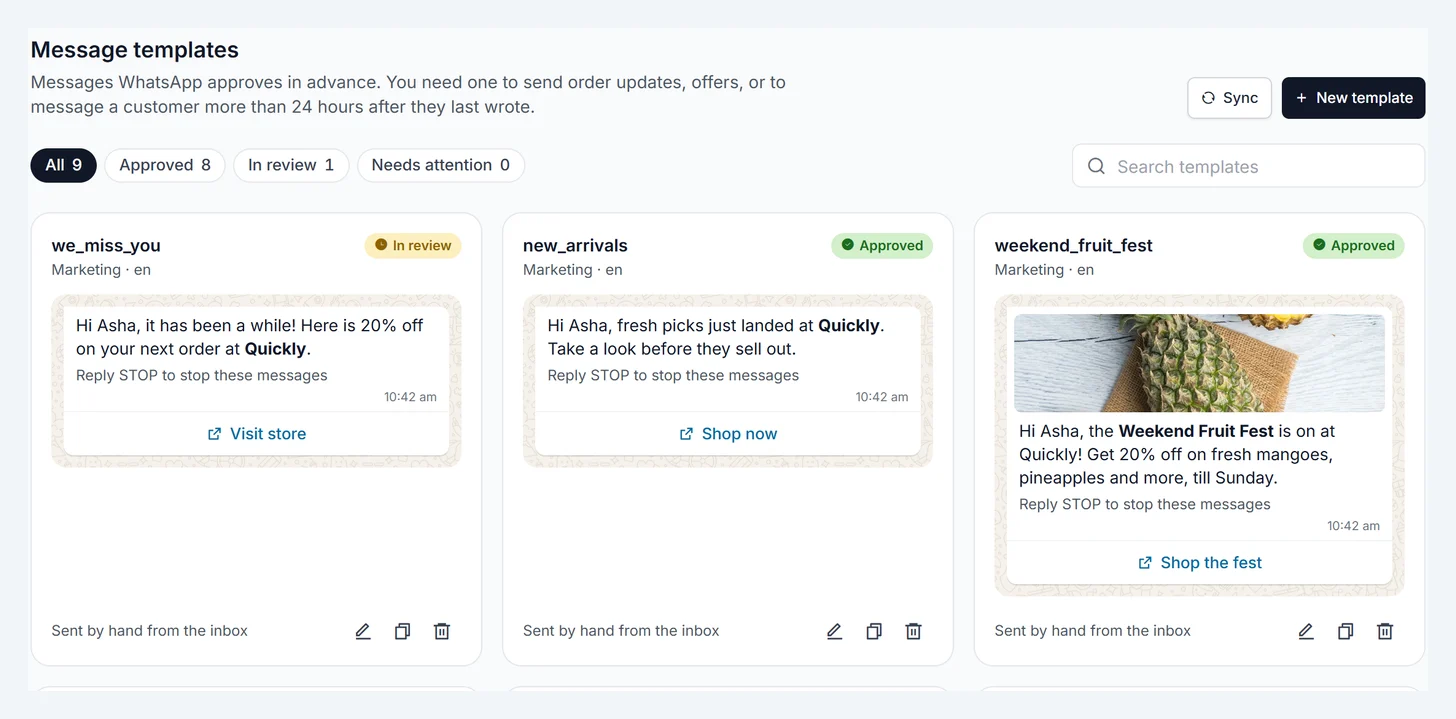
Create a template
- Go to WhatsApp › Templates and click New template.
- Pick a starter, such as Order shipped, or start from scratch. The starters are already written the way WhatsApp approves them.
- Choose the type:
- Utility for updates about something the customer did, like an order or a return.
- Marketing for offers, new arrivals and anything else that sells.
- Write the message. Click a detail, such as Customer first name or Order number, to add it. Zepio fills it in for each customer when the message is sent.
- Add a header (text, photo, video or document), a footer, or up to 3 buttons if you want. The phone on the right shows what customers will see.
- Click Submit for review.
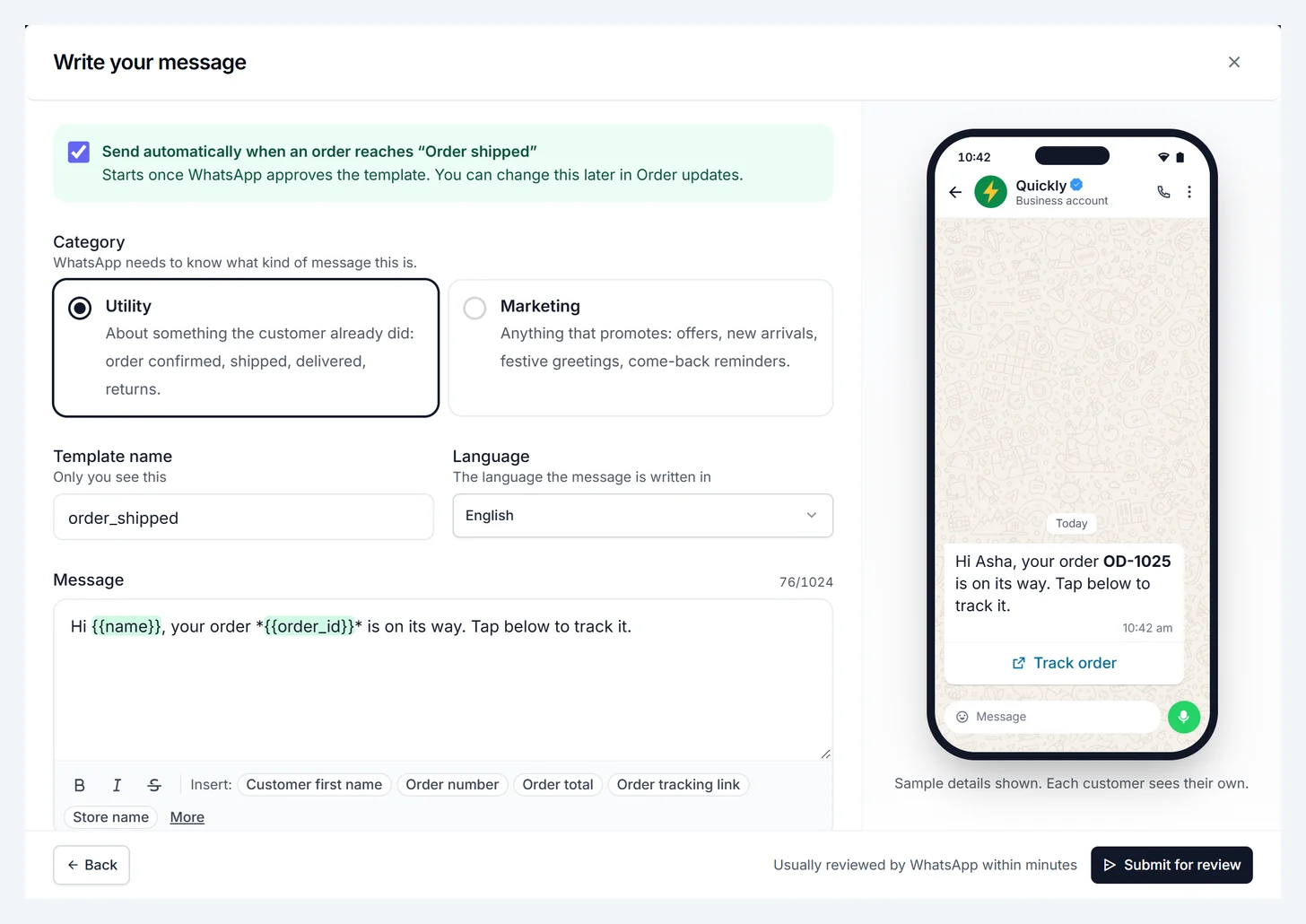
Most templates are approved within minutes. The card shows Approved, In review or what needs fixing.
WhatsApp decides the final type. If a Utility template reads like an offer, WhatsApp can approve it as Marketing, which costs more per message.
Rules that get templates rejected
- A message that starts or ends with a detail, like "{{name}}". Put words before and after it.
- A Utility template with sales words such as "offer", "sale" or "discount".
- Details without real example values. Zepio adds examples for you.
Send order updates automatically
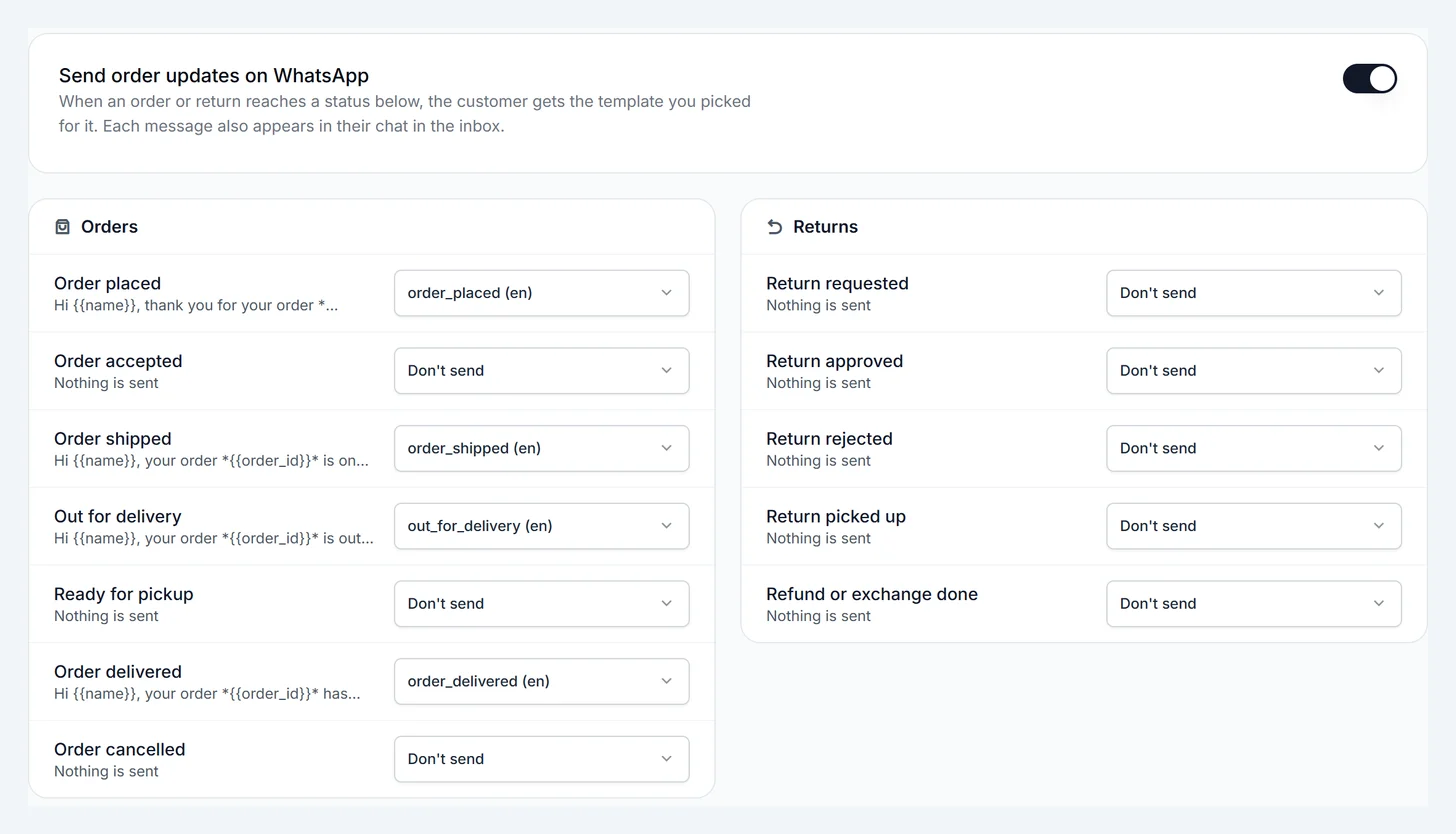
- Go to WhatsApp › Order updates.
- Turn on Send order updates on WhatsApp.
- For each status, such as Order shipped, choose the approved template to send. There are 7 order steps (placed, accepted, shipped, out for delivery, ready for pickup, delivered, cancelled) and 5 return steps.
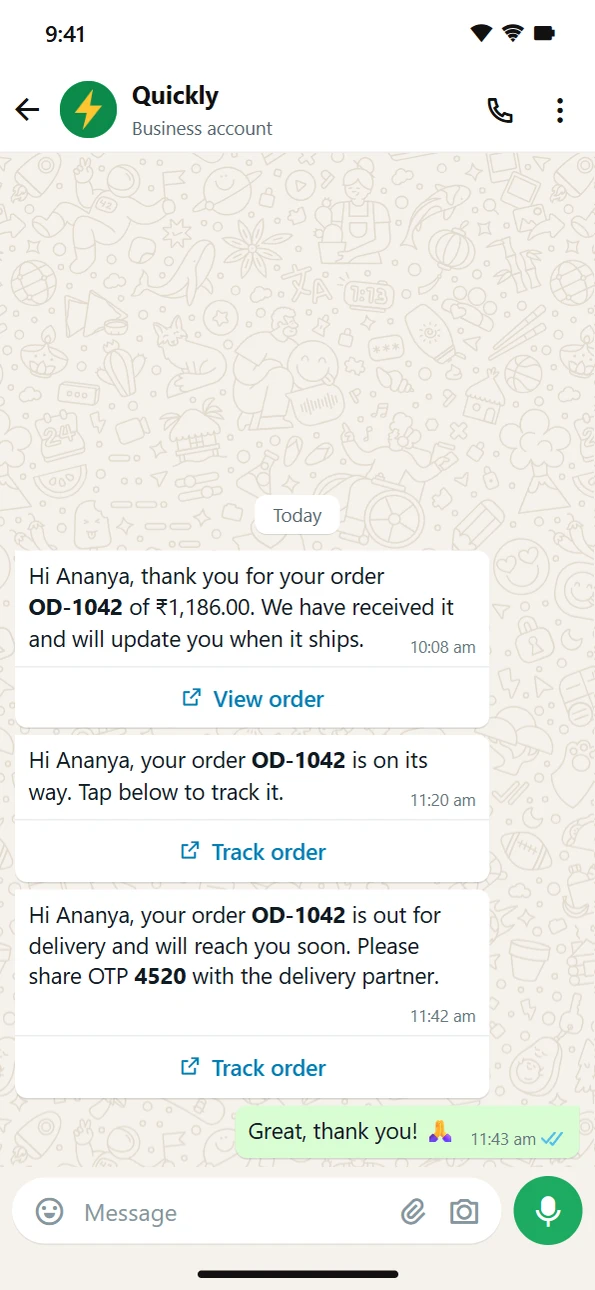
When an order reaches that status, the customer gets the message and it shows in their chat in the inbox. Each update is sent once per order, even if the status is saved again.
Edit or delete a template
Use the buttons on the template's card. WhatsApp lets you edit an approved template a limited number of times, and each edit goes back for review. Deleting asks you to confirm, removes the template from WhatsApp too, and stops any order update it was linked to.