
Send a WhatsApp campaign and see its results
Send an approved Marketing template to a group of your customers, now or later, and see who read it, tapped it and ordered.
Updated 19 Oct 2026 3 min read
On this page
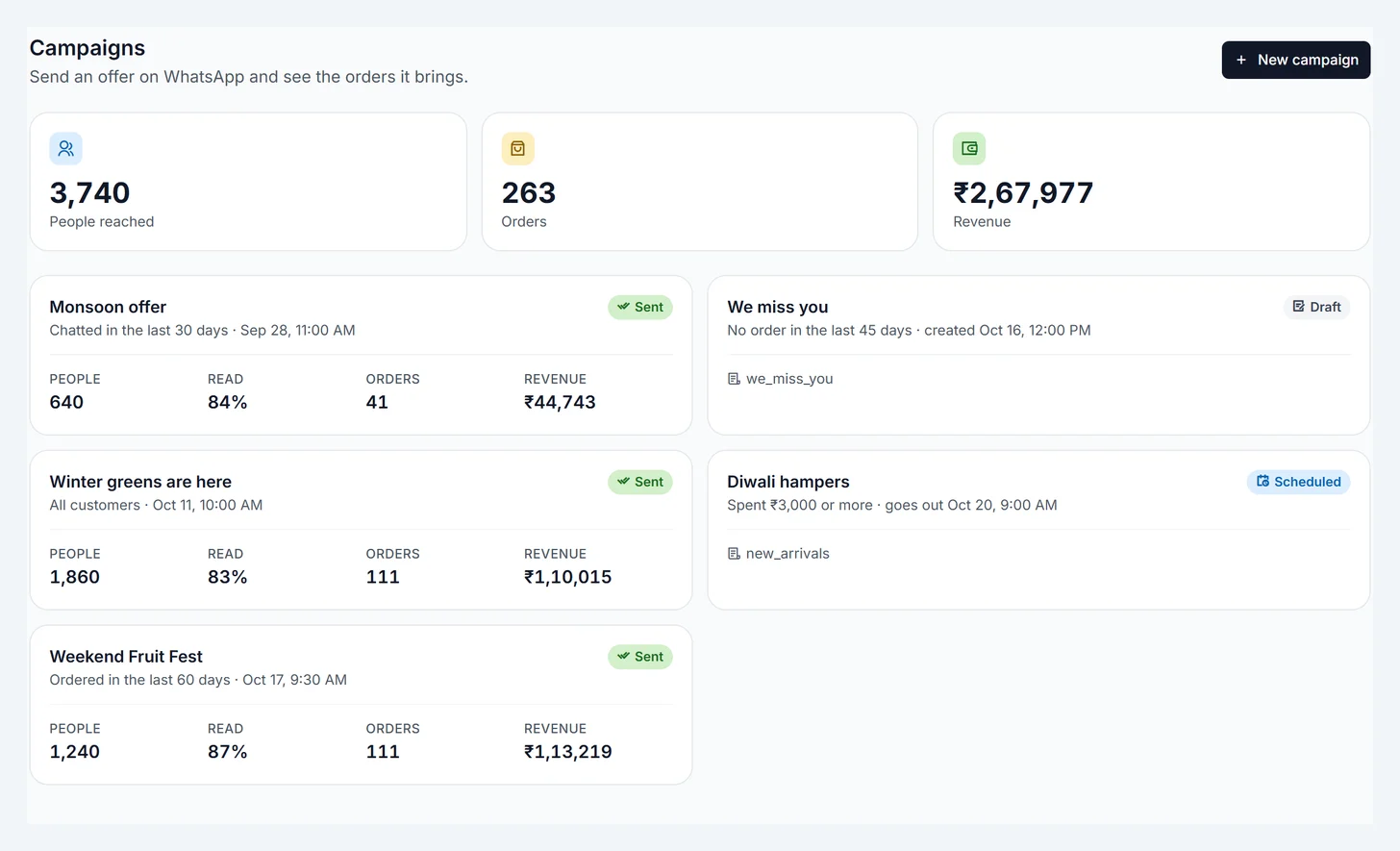
A campaign sends one approved Marketing template to a group of your customers and shows what it earned. Campaigns are part of Pro.
Where: Admin › WhatsApp › Campaigns
Before you start
- An approved Marketing template, such as the New arrivals or Festive offer starters in Templates. See WhatsApp templates.
- To count taps on the button, the template's link button needs Count taps in campaigns turned on. The Promotions starters have it on already.
- Only message people who agreed to hear from you on WhatsApp.
Create a campaign
- Click New campaign and give it a name. Only you see it.
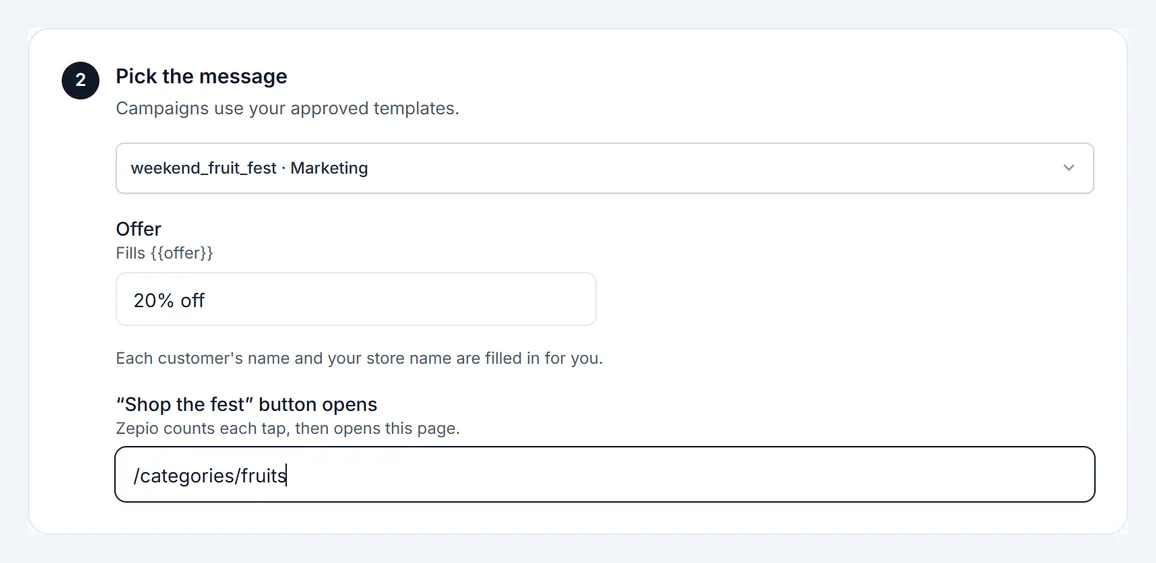
- Pick the template. Each customer's name and your store name are filled in for you; fill in any other details, such as the offer.
- If the button counts taps, enter the page it opens, for example
/categories/fruits. Leave it empty for your home page.
Choose who gets it
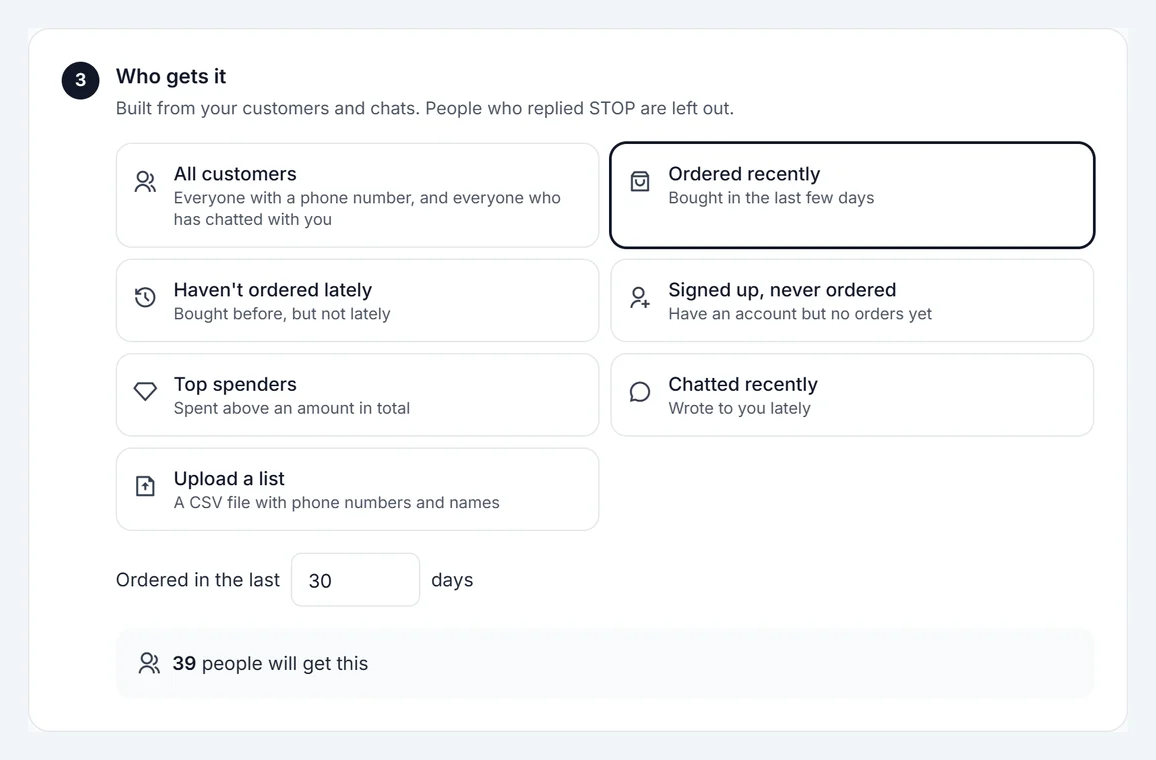
- All customers: everyone with a phone number, and everyone who has chatted with you.
- Ordered recently: bought in the last number of days you choose.
- Haven't ordered lately: bought before, but not in the last number of days.
- Signed up, never ordered.
- Top spenders: spent at least the amount you choose, in total.
- Chatted recently: wrote to you in the last number of days.
- Upload a list: a CSV with one phone number per line and a name next to it if you have one, up to 10,000 numbers. Numbers without a country code are read as your store's country.
Zepio shows how many people will get it. Customers who opted out (replied STOP, or one of your opt-out words) are always left out, and each number gets the message once.
Send now or later
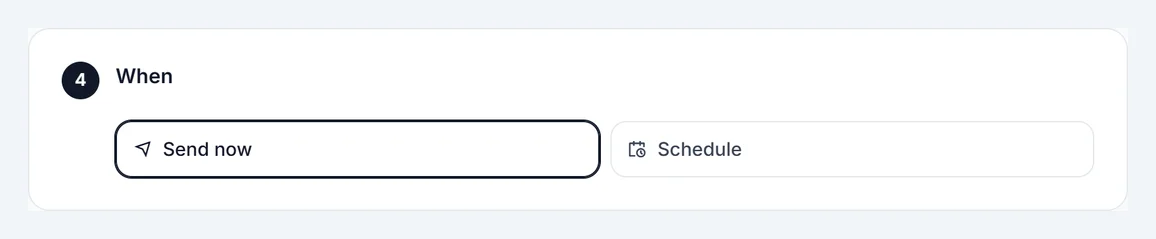
Choose Send now, or Schedule and pick a time (your local time). Then confirm. You can also Save draft and finish later.
Your number can start chats with a limited number of new people a day. If a campaign is bigger, Zepio warns you; WhatsApp raises the limit as customers read your messages.
See the results
Open a campaign to see its report.
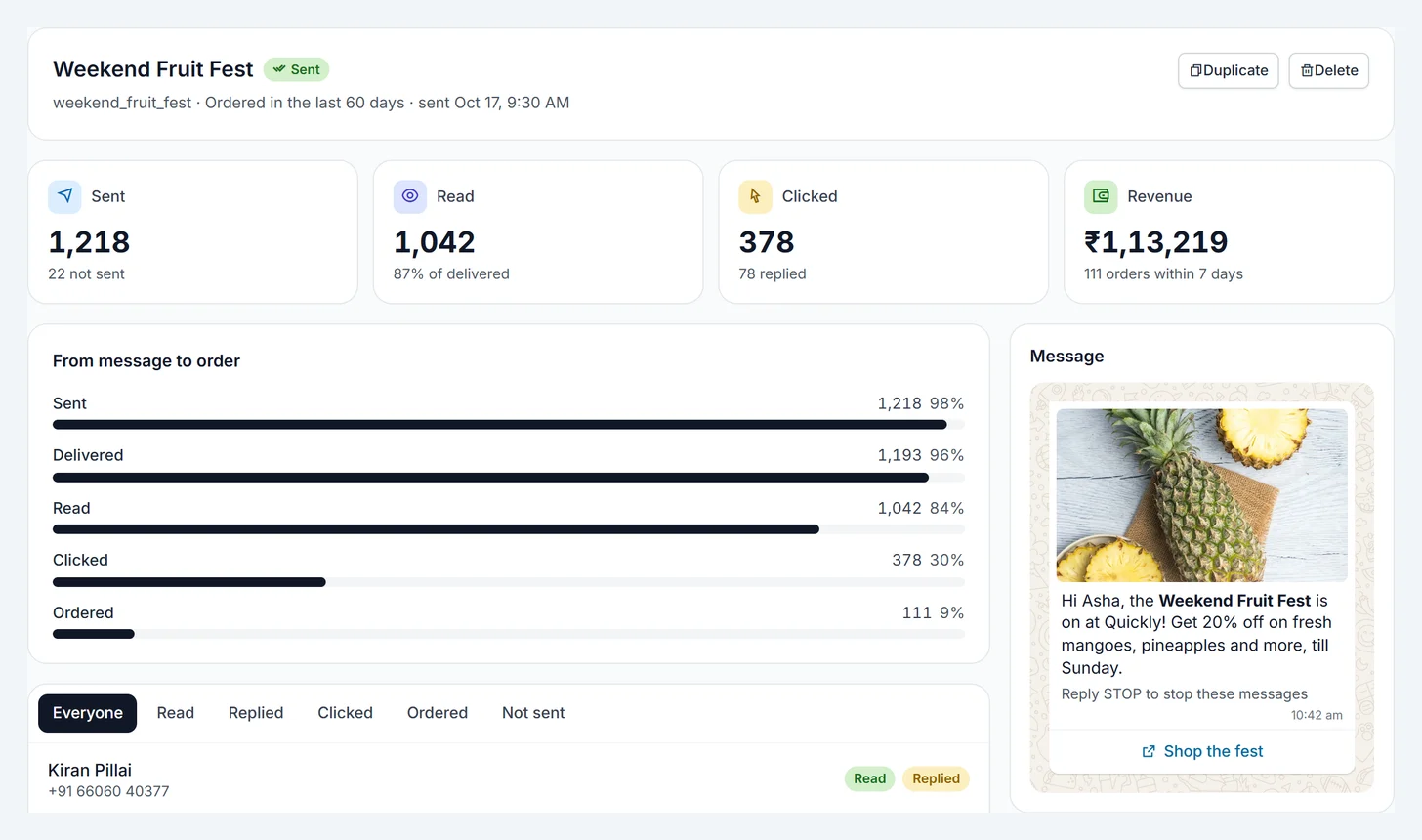
- Sent, Delivered and Read come from WhatsApp.
- Replied counts customers who wrote back within 3 days.
- Clicked counts taps on a button with Count taps in campaigns.
- Revenue adds up the first order each person placed within 7 days of the message.
Below, filter the list by Read, Replied, Clicked, Ordered or Not sent, and open any person's chat.
Stop, duplicate or delete
- Stop halts a scheduled or sending campaign. People who already got it keep it.
- Duplicate makes a draft copy to send again.
- Delete removes the campaign and its results. Messages already sent stay in each chat.
Stop and delete ask you to confirm first.