
How to connect WhatsApp to your store
Connect your WhatsApp Business number to Zepio to chat with customers, send order updates and manage message templates from your admin.
Updated 19 Oct 2026 3 min read
On this page
Connect your WhatsApp number once and you can reply to customers from Zepio, send order updates automatically and keep every chat next to the customer's orders.
Where: Admin › WhatsApp
WhatsApp comes with the Scale and Multivendor plans. Zepio connects through WhatsApp's official Cloud API.
Before you start
- A Facebook account. You use it to sign in to Meta during setup.
- One of these numbers:
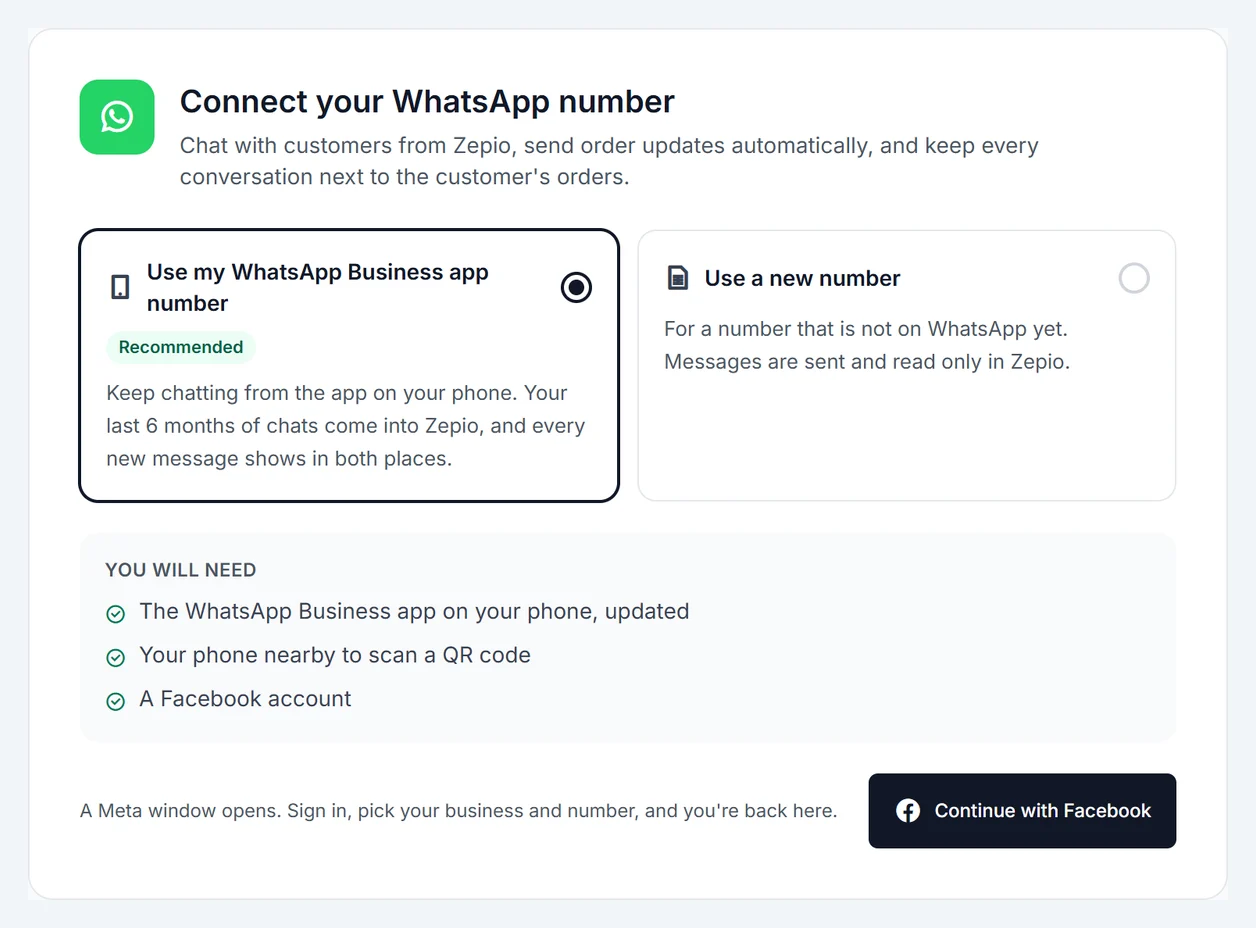
- The number on your WhatsApp Business app. You keep using the app on your phone, and the last 6 months of chats come into Zepio. Update the app first and keep your phone nearby to scan a QR code.
- A new number that is not on WhatsApp yet. It must be able to get a code by SMS or call. Messages for this number are sent and read only in Zepio.
- About 5 minutes.
Connect your number
- Go to WhatsApp.
- Choose Use my WhatsApp Business app number or Use a new number.
- Click Continue with Facebook. A Meta window opens.
- Sign in to Facebook, pick your business (or create one), and choose or add your WhatsApp number. For your app number, scan the QR code with the WhatsApp Business app when Meta asks.
- Accept the permissions. The window closes and Zepio shows your number with a green dot.
Closed the Meta window by mistake? Click Open it again.
Add a payment method in WhatsApp Manager
WhatsApp charges for some messages, such as order updates and offers. Meta bills these to a card in your WhatsApp account, not through Zepio, and Zepio adds nothing on top. Until a card is added, those messages fail.
- Open WhatsApp Manager and choose the account you connected.
- Open its payment settings and add a card.
Replies to a customer within 24 hours of their message are free.
Check your account
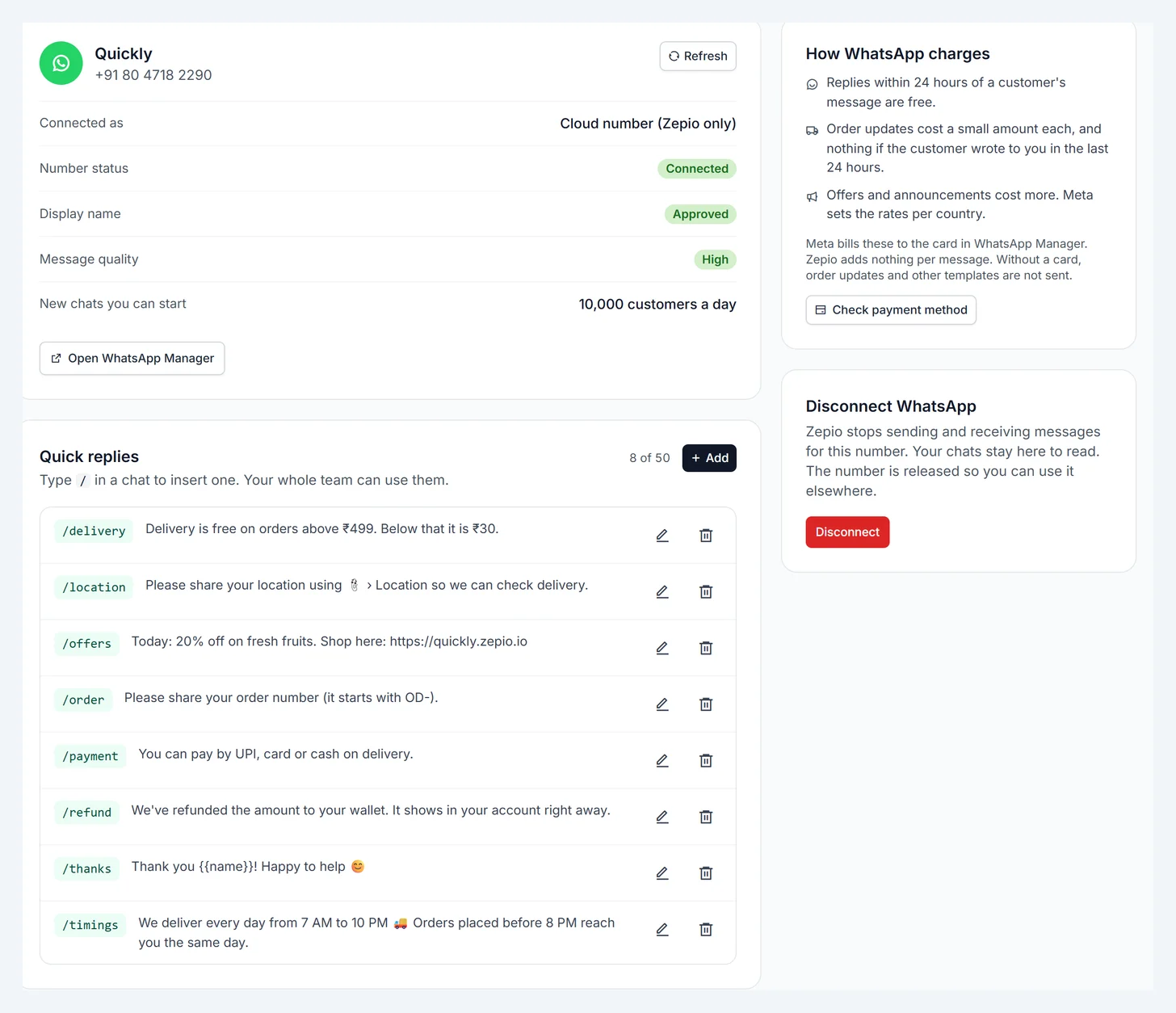
Go to WhatsApp › Settings to see your number's name, its quality rating and how many new customers you can start chats with each day. WhatsApp raises that limit as customers read your messages. The same page holds your quick replies.
Your display name
WhatsApp reviews the name customers see for your number. It usually takes a day or two, and a note at the top of the WhatsApp pages shows how it is going:
- In review: messages still go out, but customers see your number instead of the name until it is approved.
- Declined: change the name in WhatsApp Manager and it is reviewed again. Messages still go out in the meantime.
- WhatsApp is holding your messages: some numbers can't send at all until the name is approved. Zepio then pauses chatbots, auto-replies, order updates, COD confirmation, cart reminders and campaigns, and starts them again on its own once the name is approved. Cash on delivery orders show Not delivered: call to confirm while it lasts.
Disconnect
Go to WhatsApp › Settings, click Disconnect and confirm. Zepio stops sending and receiving messages for the number. Your chats stay in Zepio. If you used your app number, the WhatsApp Business app keeps working on your phone.
Next steps
- Create message templates and turn on order updates
- Chat with customers in the inbox
- Give staff chat-only access: in Settings › Staff account, create a role with the Manage WhatsApp Chat permission. Staff with it can use the inbox and send approved templates, but cannot change templates or settings.
- Sell more with Pro: campaigns, cart reminders, COD confirmation and chatbots, free for 15 days.