
WhatsApp auto-replies and chatbots
Greet new customers, reply when you are closed, answer common questions by keyword, and draw a chatbot of messages, buttons, lists, photos and links.
Updated 19 Oct 2026 7 min read
Answer customers instantly when you can't. Auto-replies and chatbots are part of Pro.
Where: Admin › WhatsApp › Automations
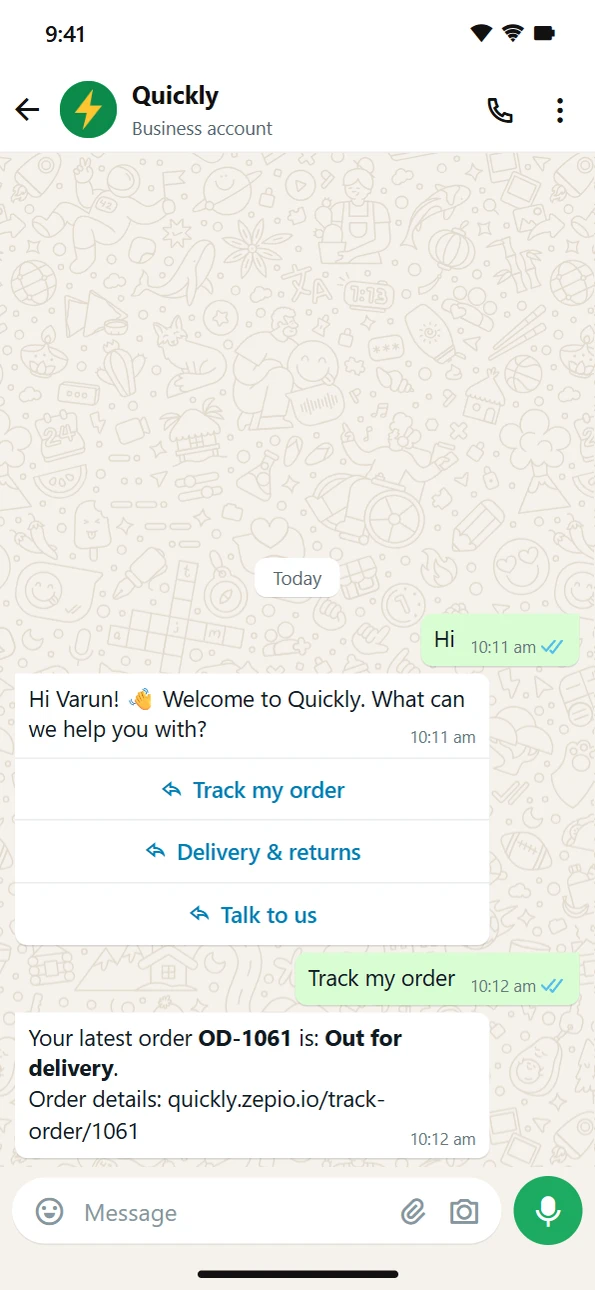
Each customer message gets at most one automatic answer. Zepio checks, in this order: a tap on a chatbot button, a keyword reply, a chatbot's start words, the welcome message (first message only), then the away message.
Welcome and away messages
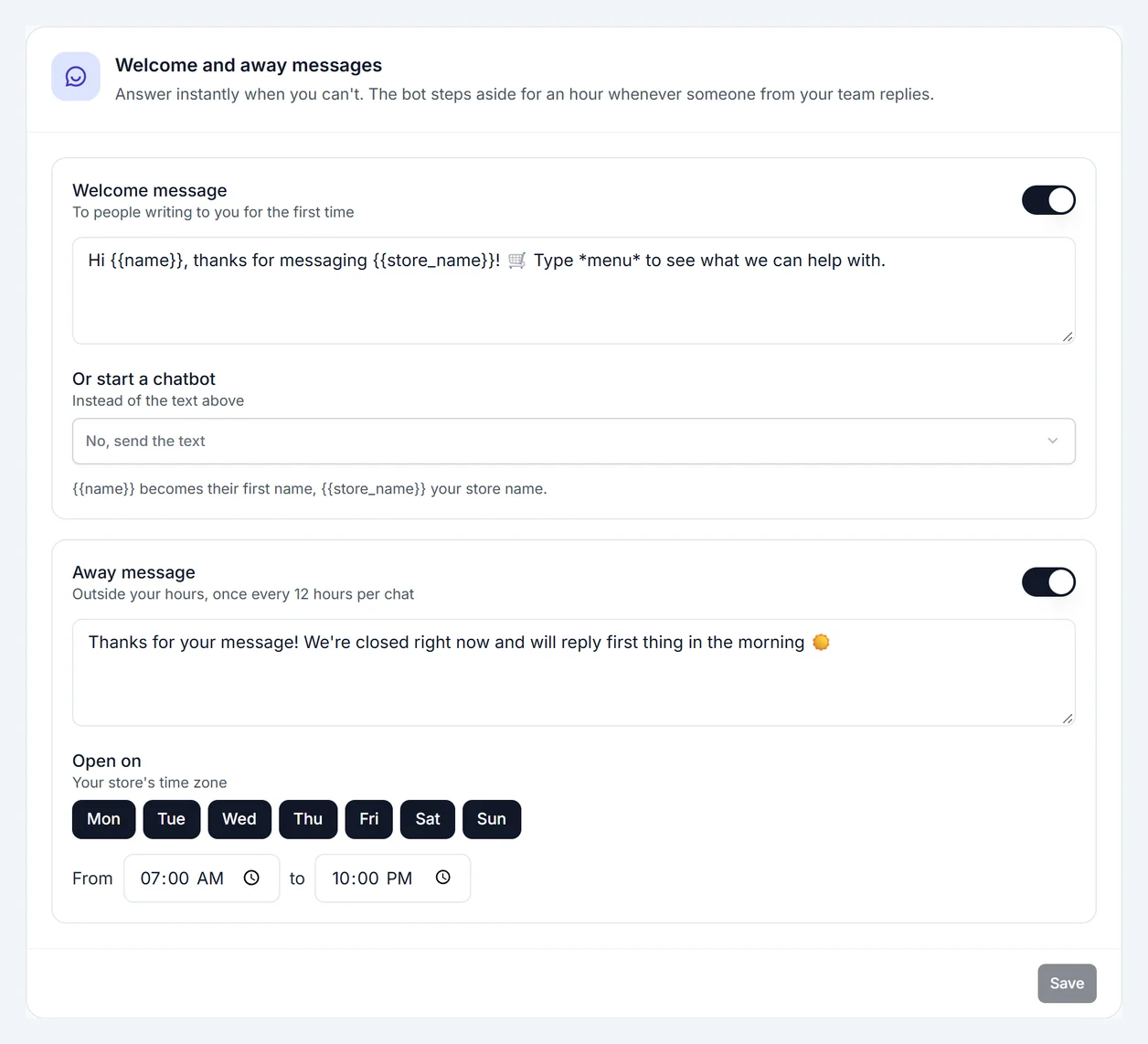
- Welcome message goes to people writing to you for the first time. Instead of text, it can start a chatbot.
- Away message goes out when someone writes outside your opening hours, once every 12 hours per chat. Pick the days and the hours, in your store's time zone. Hours past midnight work too, such as 10 PM to 2 AM.
Turn each one on, write the text and click Save. "{{name}}" becomes the customer's first name and "{{store_name}}" your store name.
Keyword replies
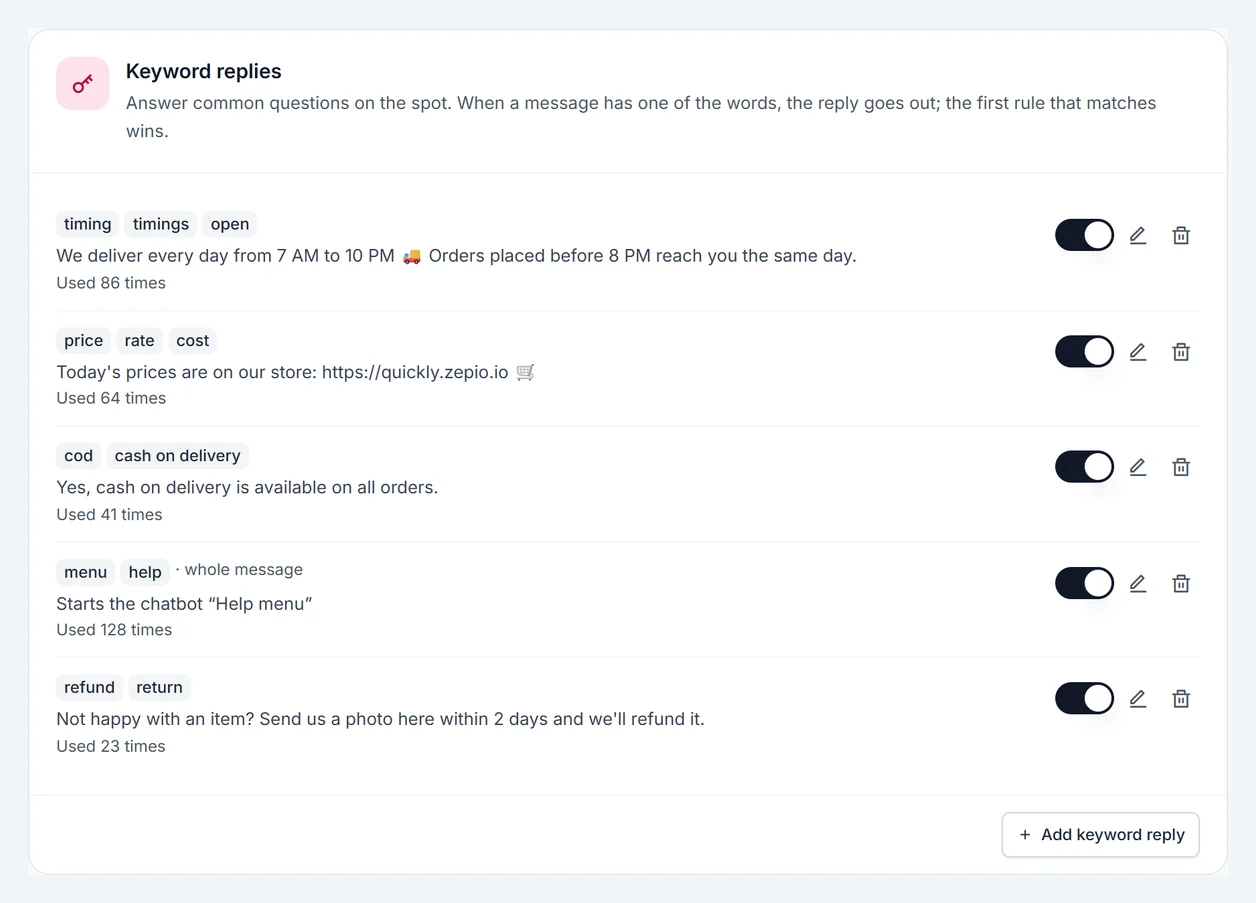
- Click Add keyword reply.
- Enter the words to look for, separated by commas, such as
price, cost, rate. Capitals don't matter. - Choose Anywhere in the message or As the whole message.
- Write the reply, or pick a chatbot to start.
- Click Save.
The first rule that matches wins. You can have up to 50, switch each one on or off, and see how often it was used. Deleting one asks you to confirm.
Chatbots
A chatbot is a conversation you draw: steps on a canvas, joined by lines. Each line says what happens next.
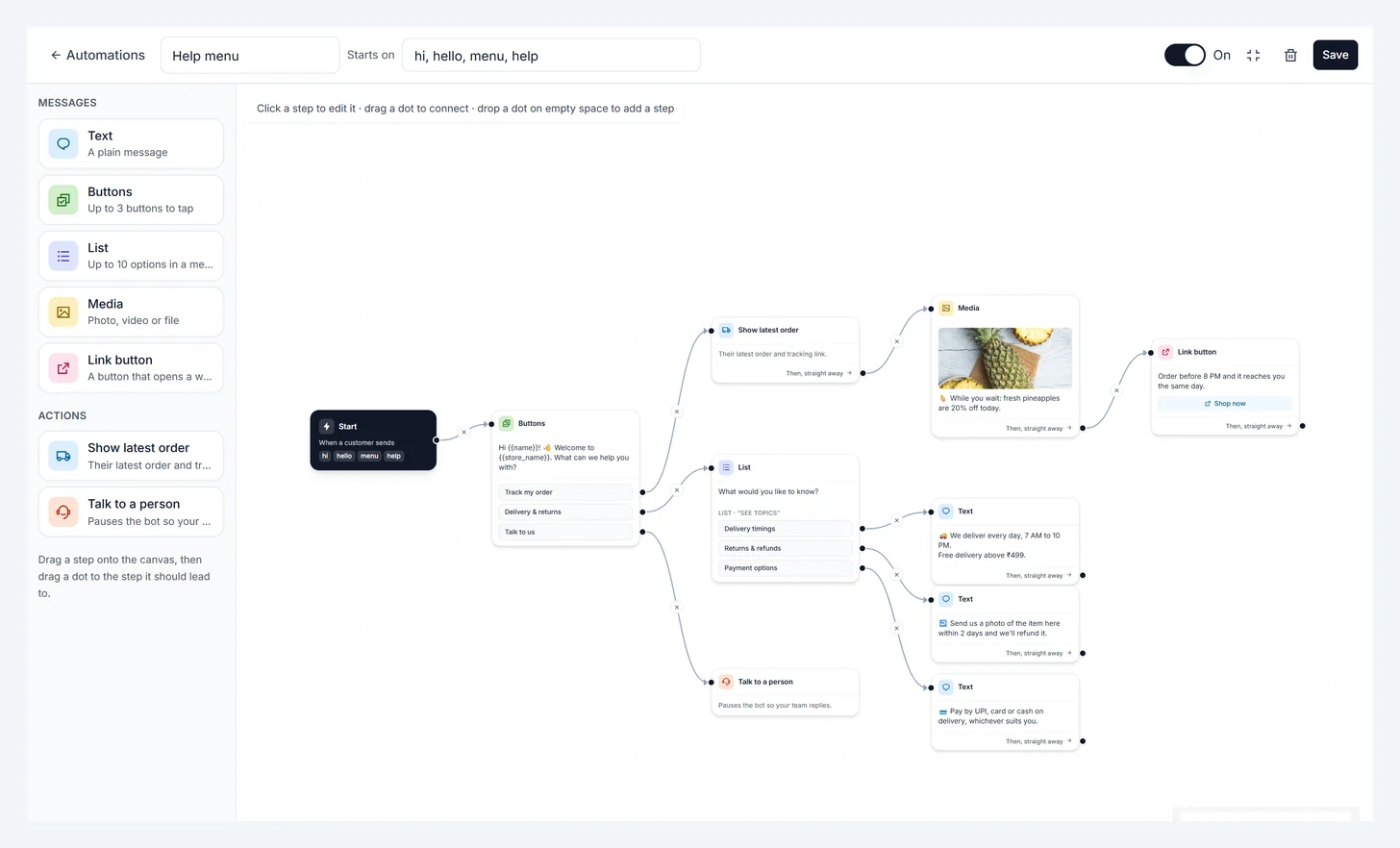
- Under Chatbots, click New chatbot. Pick a ready chatbot from the library, or Start from scratch. Click one to see all its steps first, then Use this chatbot. Everything in it can be changed before you save.
- In Starts on, enter the words that start it, such as
hi, menu, help. These must be the whole message. - Drag steps from the left onto the canvas, or click one to add it.
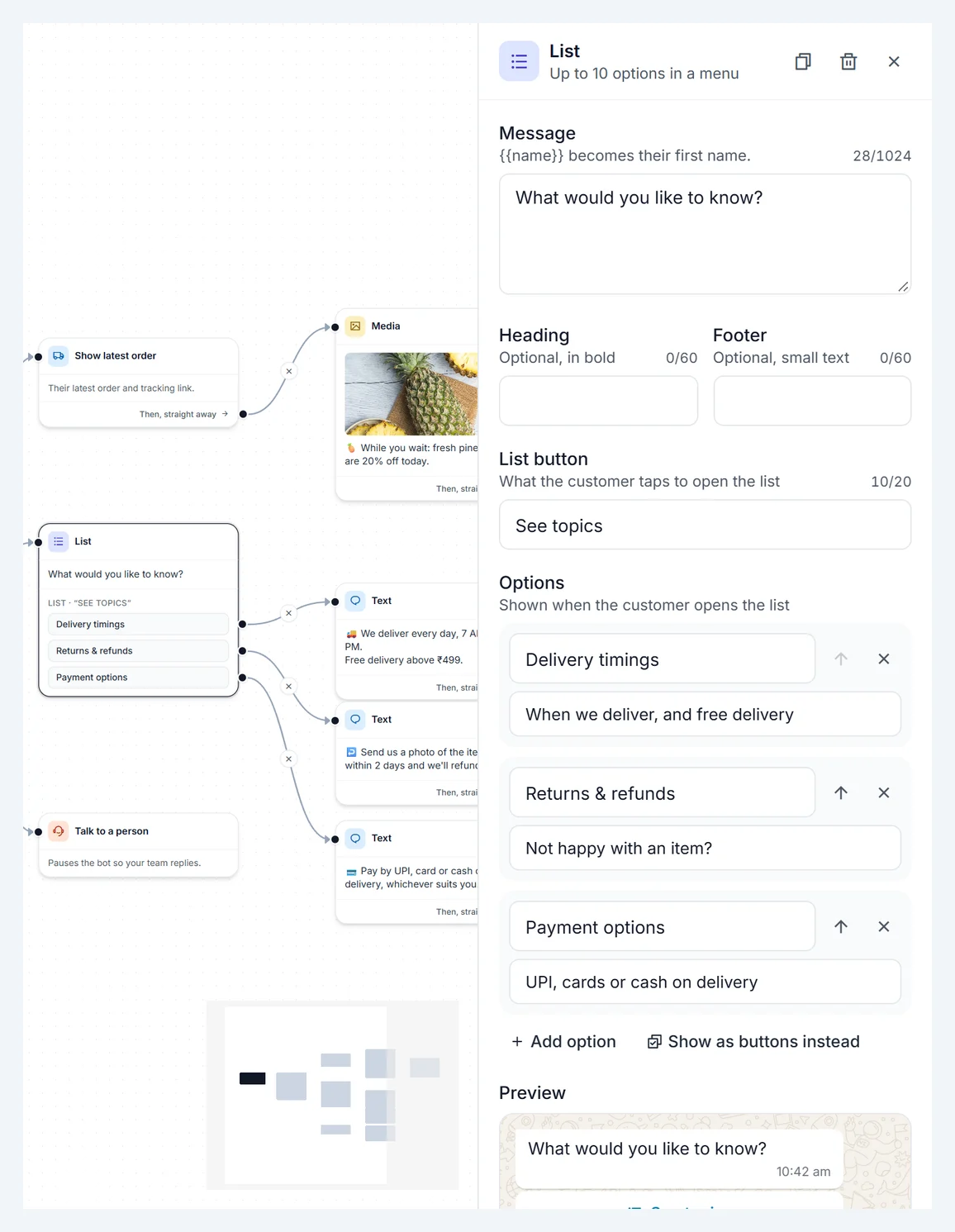
- Click a step to write its message on the right. The preview shows how it looks in WhatsApp.
- Join the steps: drag the dot on the right of a button (or of Then, straight away) to the step it should lead to. Drop the dot on empty space to add a new step there, already joined.
- Click Save.
To remove a line, click the × in its middle. To delete a step, open it and click the bin.
Ready chatbots
The library has chatbots built from what your Zepio store already has: your order pages, returns, coupons, reorder, rewards, wallet, refer a friend and policies.
| Chatbot | What it does |
|---|---|
| Help menu | One menu: track an order, shop, delivery, returns, payments or a person. |
| Order tracking | Shows the latest order, then helps with a late, missing or damaged one. |
| Returns & refunds | Return an item, check a refund or read the policy. |
| Payments & COD | Ways to pay, cash on delivery, failed payments, wallet. |
| Delivery info | Where and how fast you deliver, charges and hours. |
| Shop & browse | The store, today's coupons, search, or order again. |
| Offers & coupons | Today's coupons, rewards and refer a friend. |
| Quick reorder | Their past order back in the cart in one tap. |
| Rewards & refer a friend | Rewards, scratch cards, wallet and the referral code. |
| Welcome new customers | For your welcome message: the store and first-order coupons. |
| Product finder | A short guided chat to the right products or an expert. |
| Feedback | Happy customers rate the order; unhappy ones reach your team. |
| Bulk & business orders | Hands large orders to your team for a quote. |
| Talk to us | Connects the customer to a person, or tracks their order first. |
Check the delivery times, fees and return days in them match your store before you switch one on.
The steps
| Step | What the customer gets |
|---|---|
| Text | A plain message. |
| Buttons | A message with up to 3 buttons. Each button has its own line. |
| List | A message with a button that opens a menu of up to 10 options, each with an optional short description. |
| Media | A photo, video or file (PDF), with an optional caption. Upload it or paste a link. |
| Link button | A message with a button that opens a web page, such as a collection or your returns policy. |
| Show latest order | Their latest order's status and tracking link. |
| Talk to a person | Tells them a person will reply, and pauses the bot for 12 hours. |
| Delay | Nothing: it waits (up to 23 hours), then the chat carries on. |
| API request | Nothing: it calls your own system, then carries on by whether that worked. |
Buttons, List and Link button messages can also have a heading (in bold) and a footer (small text).
Buttons wait, other steps go straight on
- Buttons and List wait for the customer to tap. Every button and option must lead to a step.
- Text, Media, Link button and Show latest order can lead on with Then, straight away: the next step is sent right after, without waiting. For example, show the latest order, then send a photo of today's offer, then a Shop now button.
- Delay waits, then sends the next step. If the customer taps something else, the chatbot starts again, or someone from your team replies in the meantime, the rest is skipped. WhatsApp only allows replies within 24 hours of the customer's last message, so keep long waits for chats that just started.
- Talk to a person ends the chatbot.
API requests
An API request step calls an address on your own system, such as an order lookup or a CRM, while the chat is going on.
- Pick the method (GET, POST, PUT, PATCH or DELETE) and enter the address. It must start with https://.
- Add headers if your system needs them, such as
Authorization, and the fields to send. - Click Send test to see what your system answers.
- Join If it works and If it fails to the steps that come next. A 2xx answer counts as working; an error, or no answer within 8 seconds, counts as failing.
In the address, headers and fields, {{name}}, {{phone}} (the customer's WhatsApp number), {{reply}} (their last message) and {{store_name}} are filled in. Later messages can show what your system answered: after Send test, tap a field such as {{api.order.status}} to copy it into a message.
Only addresses on the internet can be called, not private or local networks.
A step marked Not connected has no line leading to it, so no one will get it. Steps with a red count still need something, such as a message or a button label; click the step to see what. Zepio won't save a chatbot until each step is complete.
You can have up to 20 chatbots, each with up to 30 steps. At most 8 messages go out in a row without the customer tapping. Chatbot messages are free, because they only answer the customer. Chatbots made before the canvas open on it as they were, with their buttons joined to the right steps.
Stores with several branches
Your WhatsApp number belongs to the whole store, so chatbots, keyword replies and the welcome and away messages do too. They are the same for every branch. Show latest order finds the customer's latest order from any branch. If your branches differ, for example in opening hours, say so in the answer or give each branch its own option in a list.
Build chatbots with Claude or Codex
Connect Claude or Codex to your store with Build WhatsApp chatbots and ask for a chatbot in plain words. It is saved switched off for you to check. See Connect Claude or Codex to your store.
When the bot stays quiet
Auto-replies and chatbots step aside so they never talk over your team:
- for 1 hour after someone replies from Zepio or the WhatsApp Business app;
- for 12 hours after a chatbot reaches a Talk to a person step.