
Chat with customers in the WhatsApp inbox
Reply to customers on WhatsApp from Zepio, see their orders beside the chat, and use quick replies, pinned chats and templates.
Updated 19 Oct 2026 3 min read
On this page
Every WhatsApp message to your number arrives in the inbox as it is sent, next to the customer's details and recent orders.
Where: Admin › WhatsApp › Inbox
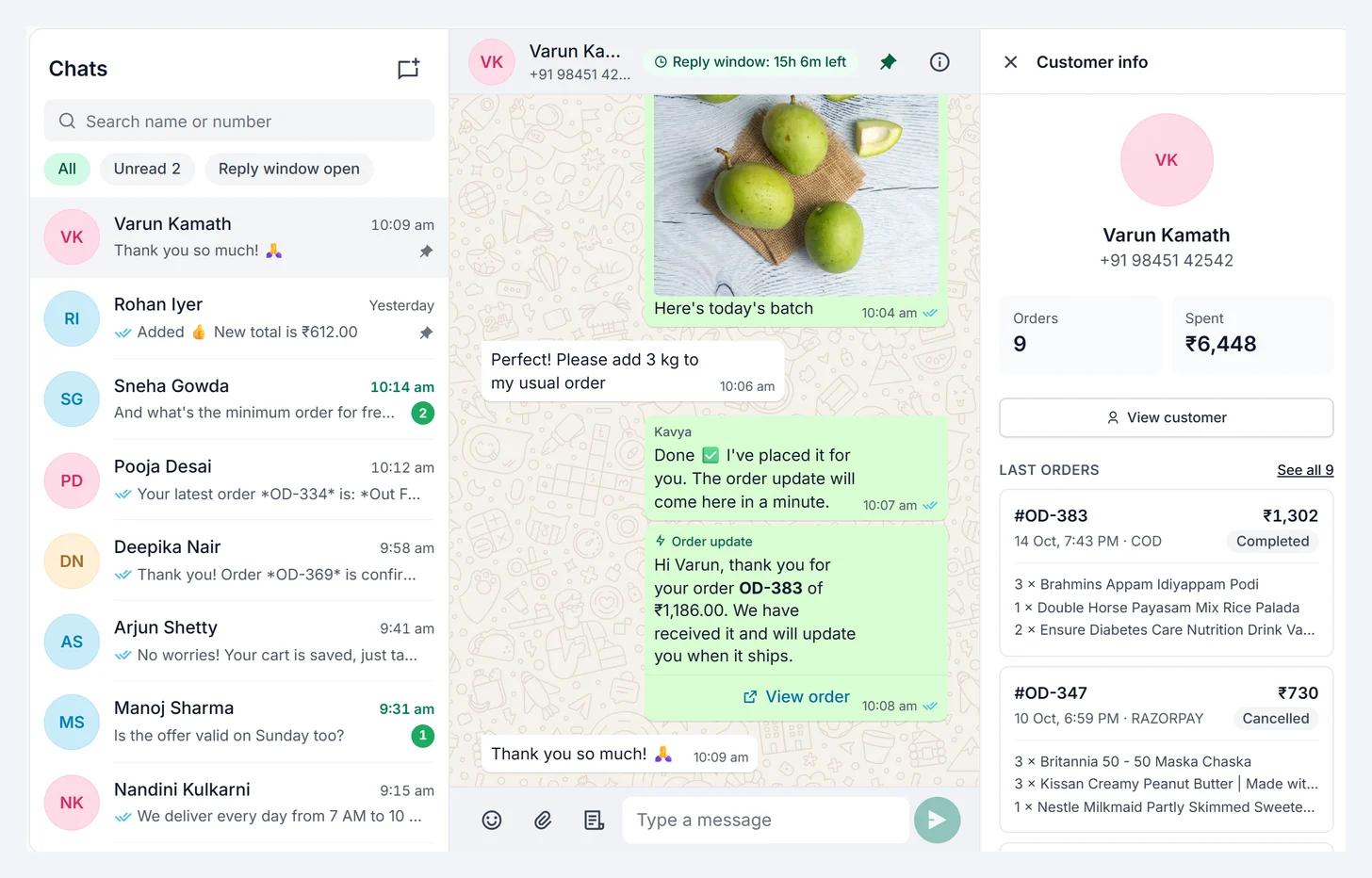
Reply to a customer
- Open a chat from the list. Chats with new messages show a count.
- Type your reply and press Enter, or attach a photo, video or file.
- Ticks show when the message is sent, delivered and read. Hover over the time to see who on your team sent it.
You can also add emoji, and reply to a specific message.
The 24-hour window
You can write freely for 24 hours after the customer's last message. The chat header shows how long is left. After that, WhatsApp only allows an approved template. Click the template button next to the message box, pick one, fill in any details and send. When the customer replies, the window opens again.
To message a customer who has never written to you, click New chat, enter their number and send a template.
Quick replies
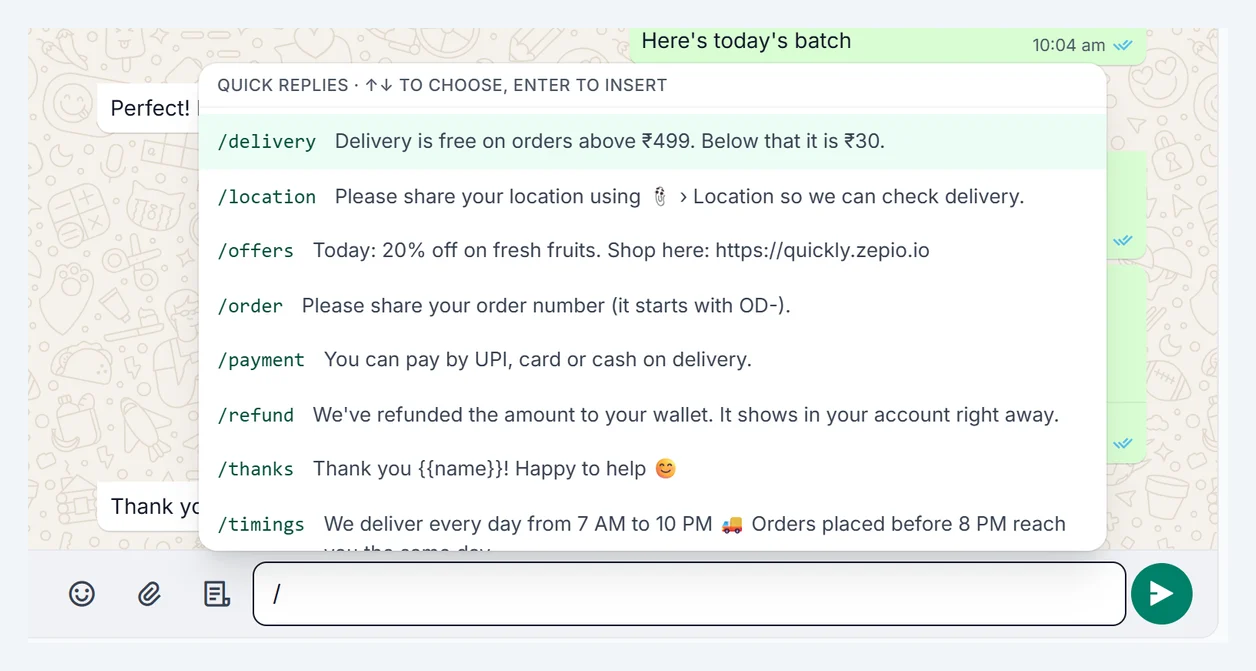
Save answers you type often in WhatsApp › Settings › Quick replies, each with a short name. In a chat, type / and the name, then press Enter. "{{name}}" becomes the customer's first name. You can save up to 50. Deleting one asks you to confirm first.
Pin chats
Hover over a chat and click the pin to keep it at the top for your whole team. You can pin up to 5.
Customer details and orders
Click the i button in the chat header. The panel shows the customer's name, number, how much they have ordered and their last 5 orders with items, payment and status. Click See all for every order from them.
Drafts
A message you start but don't send stays in the box when you switch chats, and the chat list shows it as Draft. Drafts are kept in your browser.
Notifications on your phone
The Zepio admin app notifies you of new customer messages. Tap the notification to open the chat.
Staff who only chat
Give a staff role the Manage WhatsApp Chat permission in Settings › Staff account. They see only the inbox: they can chat and send approved templates, but cannot change templates, order updates or settings.
When customers reply STOP
Customers who send STOP are opted out: they get no more offers, meaning campaigns, cart reminders and marketing templates. Order updates, COD confirmation and answers to their own messages still go, so your chatbots keep helping them. If they send START, they get offers again. Their chat shows that they opted out.
Customers are also opted out when they tap WhatsApp's Stop promotions button, or turn off offers from you inside WhatsApp itself.
Change the words
Where: Admin › WhatsApp › Settings › Opt-out
- Stop offers when a customer sends: the words that opt a customer out. It starts with stop, unsubscribe and stop promotions. The whole message counts, in any capitals, so "Stop." works but "please stop calling" does not. Add words in your customers' languages, such as बंद करो.
- Start offers again when they send: the words that bring them back, starting with start.
- Send a confirmation: a short reply after each, such as "You won't get offers from your store any more. Reply START to get offers again." It's free, because the customer has just written to you. Edit the words or turn it off.
The card also shows how many customers have opted out.