
On this page
- Why photos matter so much
- The setup: what you need
- Step 1: Set up the light
- Step 2: Make a clean background
- Step 3: Set up the phone
- Step 4: Take the same shots for every product
- Step 5: Edit lightly
- Step 6: Follow the image rules
- Photos by product type
- Mistakes to avoid
- Your product photo checklist
- How Zepio helps
To take product photos with your phone, place the product near a large window out of direct sun, on a plain white background, bounce light into the shadows with a white card, and keep the phone steady on a tripod. Take the same set of shots for every product: a clean front view, close-ups, one that shows size and one in use. Then crop, keep images large and sharp, and never add watermarks.
Product photography is taking photos that show a product clearly and honestly, so an online buyer can judge it as if they were holding it. This guide shows a setup that costs about ₹380 to ₹1,050, the shots every product needs, and the image rules to follow.
Why photos matter so much
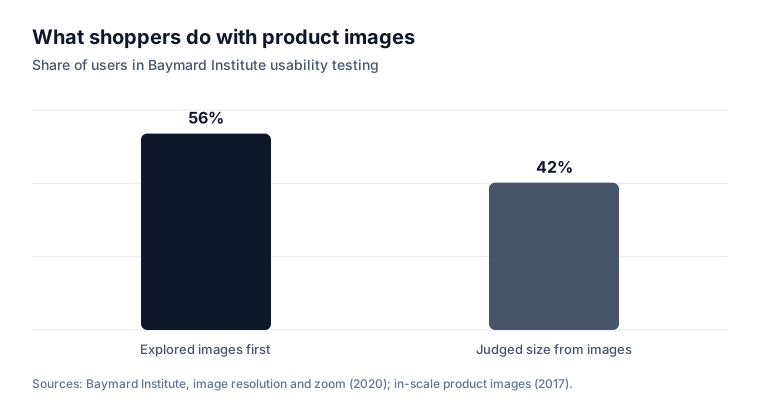
Online, photos replace picking the product up. In Baymard Institute's testing, 56% of users' first action on a product page was to explore the images, and 25% of e-commerce sites had images with insufficient resolution or zoom (Baymard). Users also try to work out size from photos: 42% did so in Baymard's tests (Baymard).
Clear photos help the buyer know what they are getting, which can prevent returns.
The setup: what you need
| Item | Rough cost | Why |
|---|---|---|
| A phone with a decent camera | You have one | Any recent phone works in good light |
| A big window | Free | Soft, even daylight |
| White chart paper or a white sheet | ₹30 to ₹100 | A clean background |
| A white foam board or card | ₹50 to ₹150 | Bounces light into shadows |
| A small phone tripod | ₹300 to ₹800 | Sharp photos, same angle every time |
| Tape and a table | Free | To hold the background in a curve |
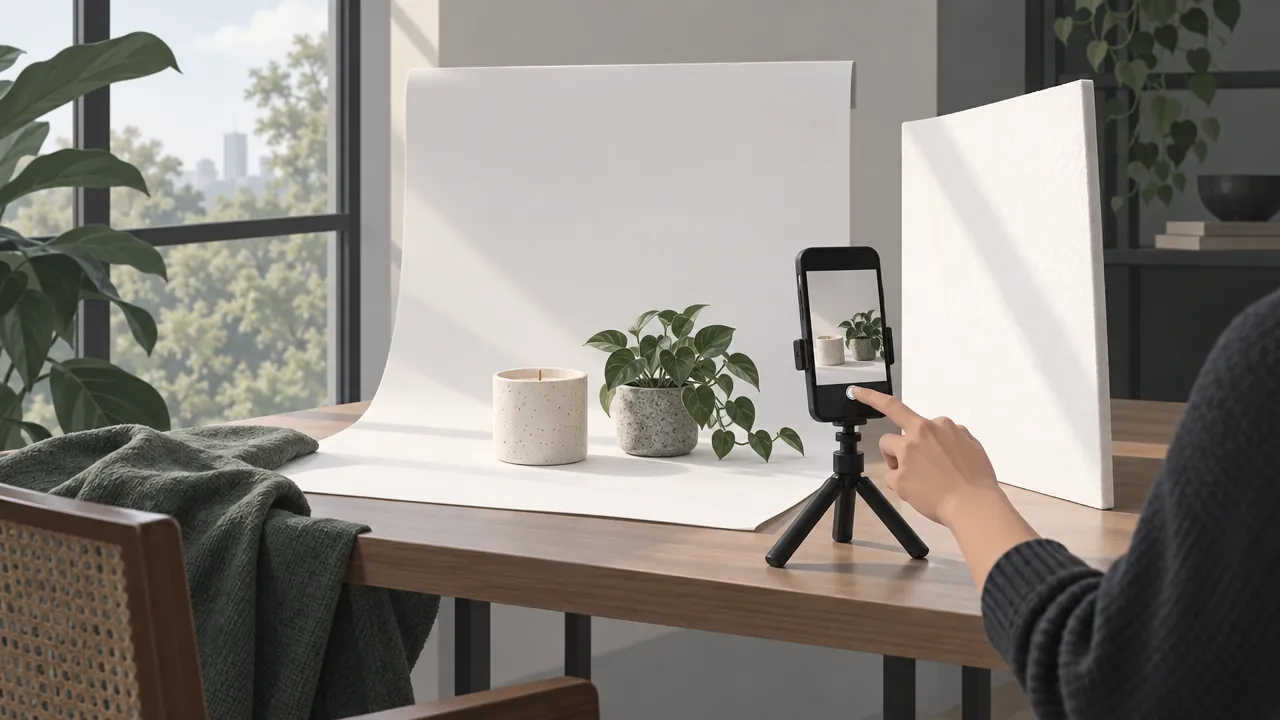
Shopify's DIY guide uses the same basics: a window, a white sweep, a reflector card and a tripod, and it advises avoiding direct sunlight, which creates harsh shadows (Shopify).
Step 1: Set up the light
- Put the table beside a window, with the window to one side of the product, not behind it.
- Avoid direct sun. If sun comes in, hang a thin white curtain or shoot at a different time.
- Place the white card on the opposite side of the window to soften shadows.
- Turn off room lights so colours do not mix.
Daylight changes during the day. Adobe's guide notes that natural light can change quickly, so it is less reliable for product-only shots (Adobe). Shoot all products in one session at the same time of day, or buy a pair of simple LED lights once you photograph often.
Step 2: Make a clean background
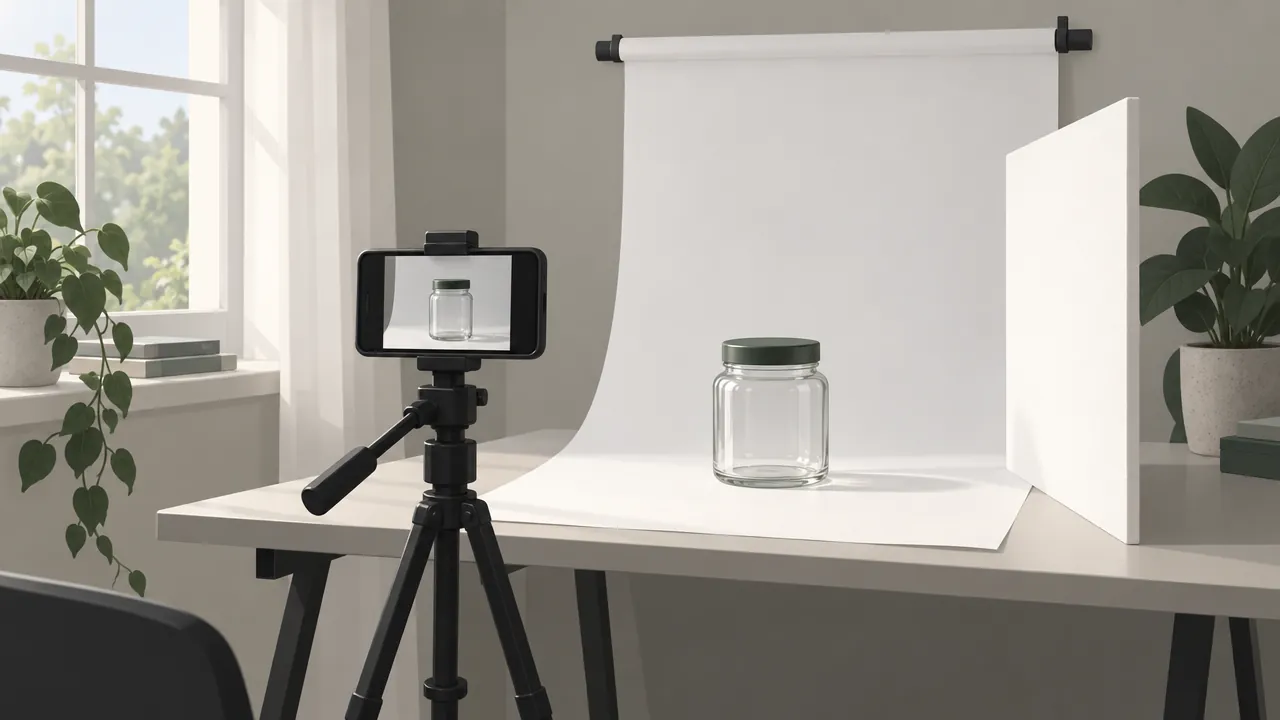
Tape white chart paper to the wall and let it curve down onto the table in one smooth sweep. Place the product on the flat part, a little away from the curve. No corner line means a clean, even background.
Step 3: Set up the phone
- Clean the lens. A thumbprint makes every photo hazy.
- Turn off the flash. It makes flat, shiny photos.
- Use the main camera, not the wide-angle lens, which distorts shapes up close.
- Tap the product to focus, then slide the exposure down slightly if white areas look washed out.
- Use a tripod and the timer (2 or 3 seconds) so the photo is sharp.
- Shoot square (1:1) if your store shows square images, leaving space around the product.
Step 4: Take the same shots for every product
| Shot | What it shows | Example |
|---|---|---|
| Front view | The main photo on a clean background | A kurta laid flat, a jar facing the camera |
| Angles | Side and back | The back of a bag, the side of a shoe |
| Close-up | Texture, stitching, detail | Fabric weave, the clasp of a necklace |
| Scale | How big it is | A hand holding the jar, a cake next to a knife |
| In use | The product being used | Kurta worn, candle lit on a table |
| Variants | Each colour or size option | One photo per colour |
| Packaging (optional) | What arrives | A gift box, a sealed jar |
Baymard recommends at least one "in scale" image; in its research, 28% of sites had none (Baymard).
Tip: Use the same distance, angle and background for every product in a category. A consistent grid of photos makes your whole store look professional.
Step 5: Edit lightly
- Crop so the product fills most of the frame with a little space around it.
- Straighten tilted photos.
- Brighten slightly if the background looks grey; keep colours true.
- Do not use beauty filters, heavy saturation or effects that change the product's colour. If the product arrives looking different, it comes back.
Your phone's built-in editor is enough. An image resizer helps when you need exact sizes.
Step 6: Follow the image rules
If you list products on Google through Merchant Center, its rules apply (Google Merchant Center Help):
| Rule | Detail |
|---|---|
| Minimum size | At least 500 × 500 pixels for all products from 31 January 2027 |
| Recommended size | 1500 × 1500 pixels or more |
| File size | No larger than 16 MB |
| Not allowed | Watermarks, copyright symbols, promotional text, borders, placeholder images |
| Variants | Show only the single variant being sold in that listing |
For search, Google says alt text is the most important extra information you can give an image, and filenames should be short but descriptive (Google Search Central). Name files like eggless-chocolate-cake-1kg.jpg, not IMG_4021.jpg. Our guide to SEO for an online store covers the rest.
Photos by product type
| Product | Tip |
|---|---|
| Clothes | Shoot flat and worn; show fabric close-up; one photo per colour |
| Jewellery | Close-ups in soft light; a photo worn or held for size; see selling jewellery online |
| Food and cakes | Shoot fresh, from slightly above; show a cut slice; soft daylight or LED lights |
| Pickles and jars | Turn the label to face the camera; show the texture with a spoonful |
| Shiny items (steel, glass) | Use the white card on both sides; avoid reflections of yourself |
| Plants and flowers | Show the pot and the height with a hand or a ruler |
Good photos work everywhere: on your website, in Instagram posts and in product descriptions that refer to them.
Mistakes to avoid
Direct sun or flash. Harsh shadows and glare hide detail.
Busy backgrounds. A patterned bedsheet pulls attention from the product.
Different setups for every product. Your store looks messy.
Only one photo. Buyers want angles, detail and scale.
Watermarks and price stickers on the image. Not allowed on Google listings and distracting everywhere.
Edited colours. True colour prevents returns.
Your product photo checklist
- Window light from one side, no direct sun, room lights off
- White sweep background and a white reflector card
- Phone on a tripod with the timer; lens cleaned; flash off
- Front, angles, close-up, scale and in-use shots for each product
- One photo per colour or variant
- Light edits only; true colours
- Images at least 1500 × 1500 pixels, under 16 MB, no watermarks
- Descriptive filenames and alt text
How Zepio helps
On a Zepio store, each product can have several photos and a product video, and each colour or variant can have its own images, so customers see exactly what they pick. Upload in bulk with the media manager. On the Scale plan you can add 3D models (GLB files) that customers can turn around, useful for jewellery and furniture.
Light, background, a steady phone and the same shots every time. That is all professional-looking product photos need.
Questions people ask
Can I take good product photos with a phone?
What background is best for product photos?
What size should product photos be?
How many photos should each product have?
Should I add my logo or a watermark to product photos?
Sources
- Ensure sufficient image resolution and zoom, Baymard Institute
- Always use 'in scale' product images, Baymard Institute
- Image link [image_link], Google Merchant Center Help
- Image SEO best practices, Google Search Central
- Product Photography: A DIY Guide, Shopify
- Product photography, Adobe
Facts were checked against these sources on 22 Oct 2026. Rules and prices change: check the source before you rely on a figure. Read our editorial standards, or write to hi@zepio.io to report a mistake.