
On this page
- Why it matters for a local business
- How Google decides who shows up
- Step 1: Create or claim your profile
- Step 2: Get your name, category and location right
- Step 3: Verify your profile
- Step 4: Fill in every detail
- Step 5: Add real photos, and keep adding them
- Step 6: Win honest reviews
- Step 7: Reply to every review
- Step 8: Keep it alive
- Link your profile to a website that takes orders
- Mistakes to avoid
- Your Google Maps checklist
- How Zepio helps
To get your business on Google Maps, create or claim your free Google Business Profile, verify it, and fill in every detail: your real business name, the right category, your address or service area, hours, photos and your website. Then ask every happy customer for an honest review and reply to every review. A complete, verified profile with genuine reviews is what helps local customers find you.
A Google Business Profile is a free listing that shows your business on Google Search and Google Maps, with your location or service area, opening hours, phone number, photos, reviews and a link to your website. This guide walks through creating, verifying and improving it, using Google's own rules.
Why it matters for a local business
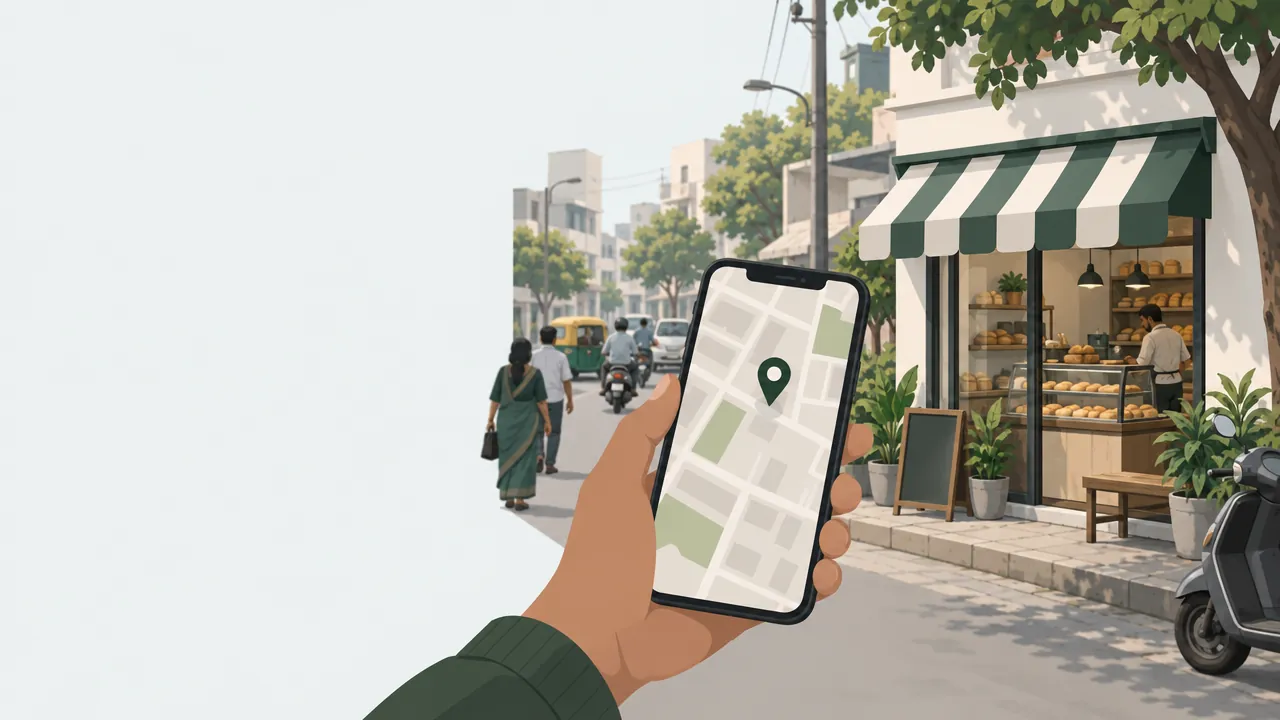
When someone nearby searches for "bakery near me" or "grocery delivery in [your area]", Google shows a map with a few businesses on it. Searchers can call, get directions or visit the website straight from that list. A Business Profile is how you get into that list.
It can be the first thing a new customer sees about you: your rating, your photos, whether you are open now, and a link to order.
How Google decides who shows up
Google's help page on local ranking says local results are based mainly on three things:
| Factor | What it means | What you can do |
|---|---|---|
| Relevance | How well your profile matches what someone is searching for | Choose the right category; describe what you sell; complete every field |
| Distance | How far your business is from the person searching | Set your address or service area correctly |
| Prominence | How well known your business is | Earn more reviews and good ratings, and get linked from other websites |
Google also says: "There's no way to request or pay for a better local ranking on Google." So be wary of anyone who promises a guaranteed top position for a fee.
Step 1: Create or claim your profile
Your business may already be on Maps without a verified owner. Check first.
- Search for your business name and town on Google Maps.
- If it is there, open it and choose "Claim this business", then "Manage now".
- If it is not there, go to business.google.com/add and follow the steps to add it.
- Use a Google account you will keep, ideally your business email, not a staff member's personal account.
Google's add or claim guide covers both routes. If someone else has already verified your business, you can request ownership from them.
Step 2: Get your name, category and location right
Get these three fields right first; Google's rules on them are strict.
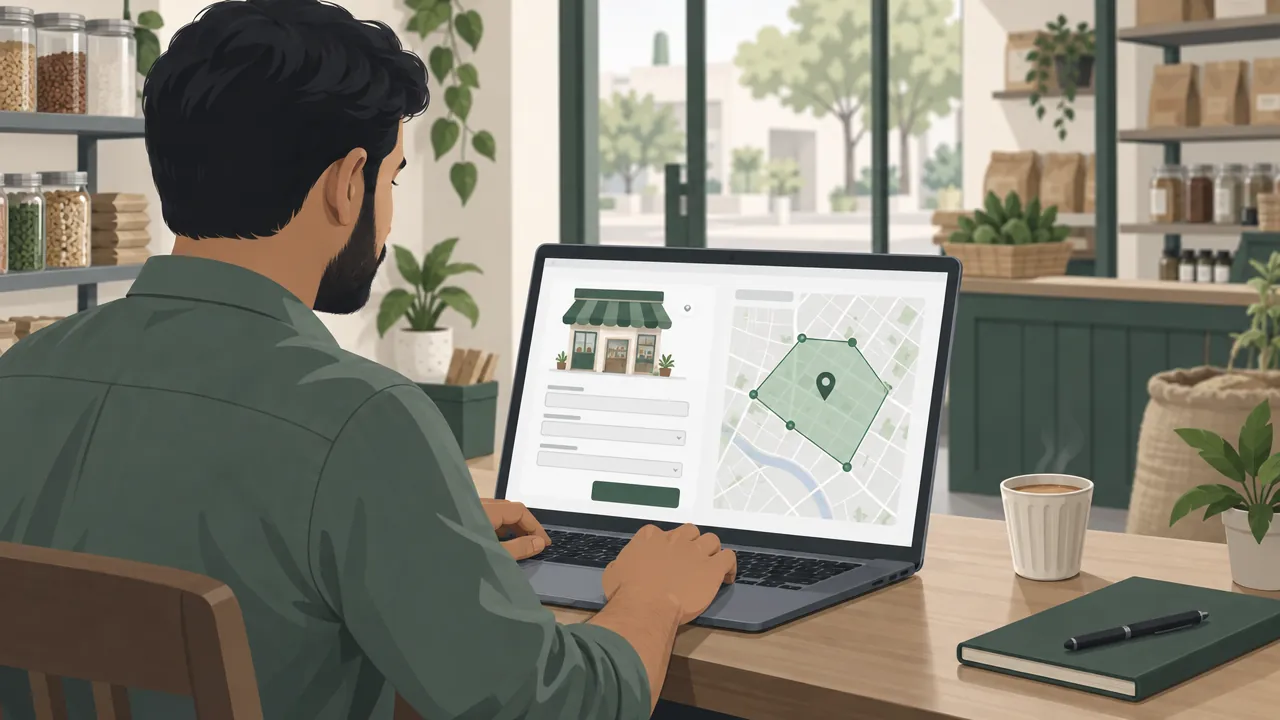
Name. Google's guidelines say your name should reflect your business's real-world name, and that including unnecessary information in the name is not permitted. Do not add keywords, your area or a tagline.
| Allowed | Not allowed |
|---|---|
| Sharma Sweets | Sharma Sweets Best Mithai Shop in Indore |
| Green Basket Grocery | Green Basket Grocery Home Delivery 24x7 |
Warning: Adding keywords to your name breaks Google's guidelines, and profiles that break them can be suspended. Your category and description are where you describe what you sell.
Category. Pick the primary category that describes what your business is, such as "Bakery" or "Grocery store", not what it sells on the side. Add a few secondary categories if they truly apply.
Location. If customers visit you, enter your exact address and put the pin on your shop door. If you only deliver or visit customers, you are a service-area business: Google's guidelines say you should hide your address and list the areas you serve instead.
Step 3: Verify your profile
Verification tells Google you are allowed to manage the business. According to Google's verification guide:
- Google chooses the methods you can use, based on your business type, public information, region and hours. They can include phone or text, email, a live video call, a recorded video, or a postcard.
- Reviews take up to 5 business days, and occasionally longer.
- Postcard codes usually arrive within 14 days and expire after 30 days.
- For video, you show your location and proof that you manage the business, such as signage, products or staff-only areas.
Tip: Before recording a verification video, plan the shot: start outside with your signboard and the street, walk in, show the counter and stock, and show something only an owner can open, such as the billing system or storeroom.
Step 4: Fill in every detail
Google's local ranking page says businesses with complete and accurate information are more likely to show up in local results. Fill in everything that applies:
- Hours, including special hours for festivals and holidays.
- Phone number that reaches your business, and WhatsApp if you use it (selling on WhatsApp Business).
- Website, ideally a page where customers can order. Our guide on creating a website for a small business covers the options.
- Description: what you sell, where you deliver, what makes you different, in plain words.
- Products or menu, with prices for your best sellers.
- Attributes, such as delivery, takeaway or payment options.
Step 5: Add real photos, and keep adding them
Photos show customers what to expect before they come in or order.
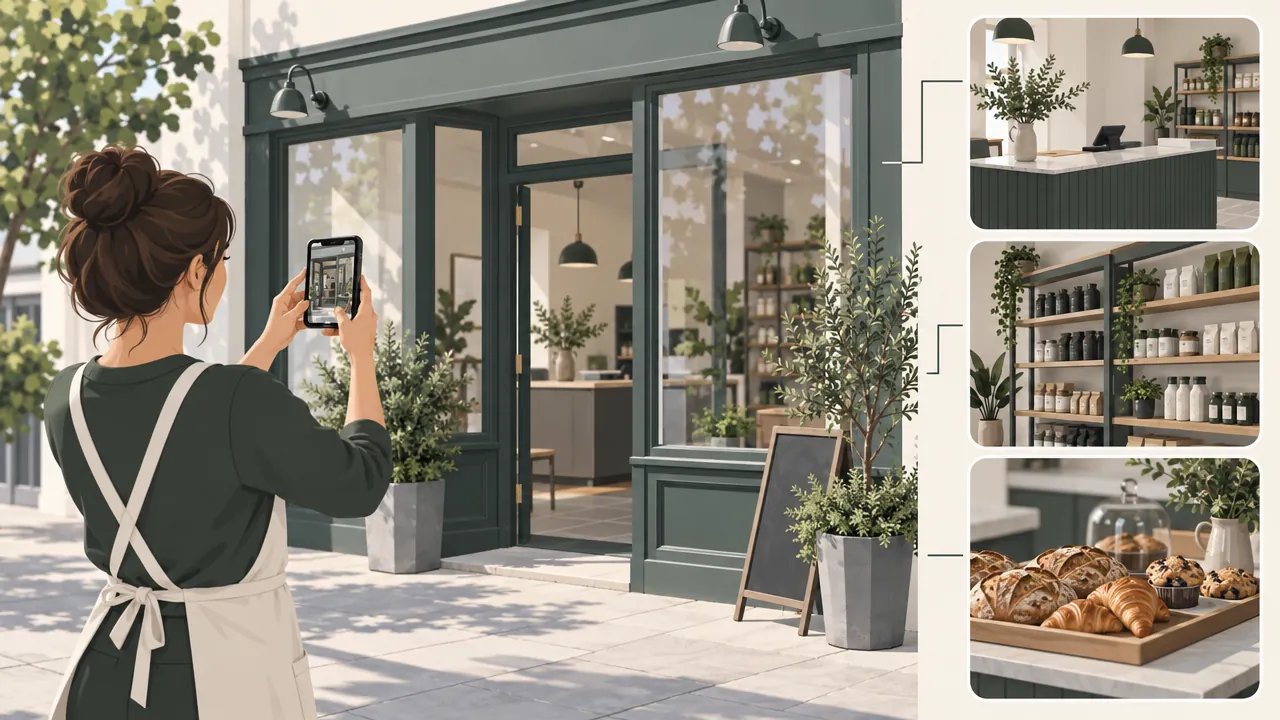
- The shop front, so people recognise it from the street.
- Inside the shop: the counter, the shelves, the seating.
- Your best products, photographed by you, not stock photos.
- Your team, if you are happy to show them.
- New photos every month: a new product, a festival display, a busy day.
Step 6: Win honest reviews
Reviews help prominence, and Google's ranking page says more reviews and positive ratings can help your local ranking. The rule is simple: ask, but never pay.
- Ask at the right moment: right after a good delivery or a happy visit.
- Make it easy: share your review link or a QR code at the counter, on the bill and in the delivery bag. Google's review guide suggests sharing a review link or QR code.
- Ask everyone, not just the customers you expect to be happy. Our guide on getting repeat customers covers when to ask.
Warning: Google's Maps content policy does not allow offering payment, discounts or free goods in exchange for reviews, or for changing or removing a negative review. Reviews obtained that way can be removed.
Step 7: Reply to every review
Google says helpful and positive replies can show that you are responsive to your customers. Reply to all of them, good and bad.
To a happy review: thank them by name, mention what they ordered, and invite them back.
Example: "Thank you, Priya! So glad the chocolate truffle cake was a hit at the party. See you for the next celebration."
To a complaint: reply the same day, apologise without arguing, and move the details to a private conversation.
Example: "We are sorry your order arrived late, Rahul. That is not the standard we aim for. Please message us on ____ so we can put it right."
Never reply angrily or share a customer's personal details. Future customers can read your replies too.
Step 8: Keep it alive
A profile that never changes can look like a business that might have closed.
- Update hours before every festival and holiday.
- Post updates: new products, offers, events.
- Keep your description, products and services current, so customers see what you sell today.
- Check your profile monthly, and correct anything that has changed or looks wrong.
Link your profile to a website that takes orders
Your profile brings people to you; your website turns them into orders. Link your profile to a page where customers can see products and prices, order and pay, not just a phone number. Then add your website to Google Search Console and submit its sitemap so Google can find its pages, and bring those customers back with reward points and reminders; our guide on getting repeat customers explains how.
Mistakes to avoid
Keywords in the business name. It breaks Google's guidelines and can get the profile suspended.
Two profiles for one business. Google's guidelines say there should be only one profile per business.
Paying or giving discounts for reviews. Google's policy does not allow it.
A personal Google account that leaves with an employee. Use an account the business controls.
Wrong or old hours. A customer who arrives to a closed shutter may not come back.
Ignoring reviews. Future customers can read unanswered complaints.
Your Google Maps checklist
- Profile created or claimed, on an account the business controls
- Verified
- Real business name only, with no keywords
- The right primary category, and a few true secondary ones
- Exact address, or a hidden address and service areas
- Hours, phone, WhatsApp, website, description and products filled in
- Real photos of the shop, products and team, updated monthly
- A review link or QR code at the counter, on bills and in delivery bags
- Every review answered
- Website linked, and the website added to Google Search Console
How Zepio helps
Zepio gives you a website on your own domain to link from your Business Profile, where Maps visitors can see products, order and pay. Customers can leave product and store reviews on your own site, you can reply to them from the admin, and you can verify your store in Google Search Console to see how it appears in Google Search.
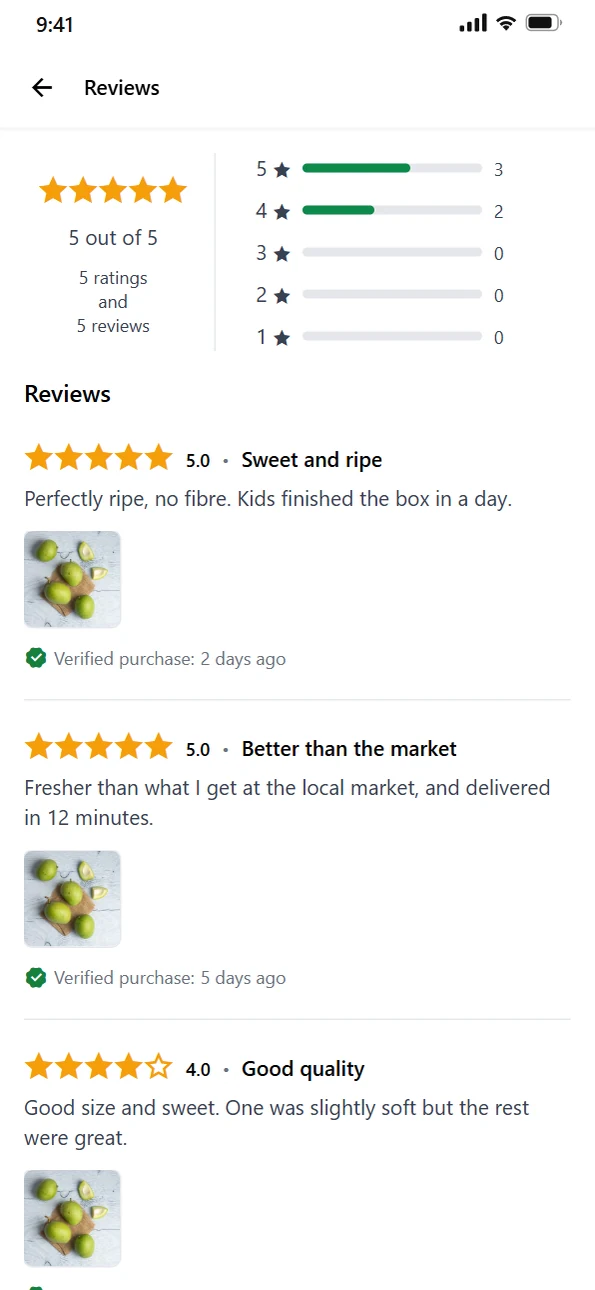
Set up your profile properly once, verify it, and then spend five minutes a week on reviews and photos. It is a small habit that keeps your business visible to people nearby.
Questions people ask
Is it free to put my business on Google Maps?
How long does Google Business Profile verification take?
Can I put my business on Google Maps without a shop?
Why is my business not showing on Google Maps?
How do I get more Google reviews?
Should I add keywords to my business name on Google?
Sources
- Add or claim your Business Profile, Google Business Profile Help
- Verify your business on Google, Google Business Profile Help
- Guidelines for representing your business on Google, Google Business Profile Help
- Tips to improve your local ranking on Google, Google Business Profile Help
- Manage customer reviews, Google Business Profile Help
- Prohibited and restricted content (fake engagement), Google Maps user contributed content policy
Facts were checked against these sources on 20 Oct 2026. Rules and prices change: check the source before you rely on a figure. Read our editorial standards, or write to hi@zepio.io to report a mistake.