


On this page
- Before you start: what to prepare
- Step 1: Choose personal or organisation account
- Step 2: Get a D-U-N-S number (organisations)
- Step 3: Create the developer account
- Step 4: The closed test (new personal accounts only)
- Step 5: Create the app and fill in the policy forms
- Step 6: Prepare your store listing
- Step 7: Check the technical requirements
- Step 8: Upload the app and send it for review
- How long it takes, from zero to live
- Why apps get rejected, and how to fix it
- After you go live
- The easier way for shops and restaurants
To publish an app on the Google Play Store, you create a Google Play developer account for a one-time US$25 fee, set up the app in Play Console with its store listing and policy answers, upload the app bundle and send it for review. If you have a new personal account, Google first asks for a closed test with at least 12 testers for 14 days. Organisation accounts skip that step but need a free D-U-N-S number.
Google Play Console is Google's website for publishing and managing Android apps; a developer account gives you access to it. This guide walks through every step in order, with the 2026 requirements, what to prepare in advance, and the reasons apps get rejected.
Before you start: what to prepare
Gather these before you open Play Console. Missing any one of them stops you partway through setup.
| What | Why |
|---|---|
| A Google account for the business | It will own the developer account; use one that will not leave with a staff member |
| D-U-N-S number (organisations) | Required for organisation accounts; takes up to 30 days |
| Business website, email and phone | Required for organisation accounts. Google uses the phone number to verify you |
| A payment card | For the US$25 registration fee |
| Privacy policy URL | Required for every app |
| App icon, feature graphic and screenshots | For the store listing |
| The app bundle (.aab) | The file you upload; your developer or app builder provides it |
| A test login | If parts of your app need a login, Google's reviewers need one |
Step 1: Choose personal or organisation account
Google Play has two kinds of developer account (Google's guide):
| Personal account | Organisation account | |
|---|---|---|
| Public details | Developer name, plus your legal name and country | Developer name, plus the business's legal name, address and phone |
| D-U-N-S number | Not needed | Required |
| Business website and phone | Not needed | Required |
| 12-tester closed test | Required for accounts created after 13 Nov 2023 | Not required |
| Best for | Individuals and hobby apps | Shops, restaurants, brands, companies |
See also Google's required information and testing rule.
For a business app, an organisation account is usually the better choice. Customers see your business as the developer, and you skip the closed test. The catch is the D-U-N-S number, so apply for it first.
Step 2: Get a D-U-N-S number (organisations)
A D-U-N-S number is a nine-digit business ID issued free by Dun & Bradstreet. Google says you cannot create an organisation account without one, and getting it can take up to 30 days.
- Apply on the Dun & Bradstreet website with your registered business name and address, exactly as on your registration documents.
- Wait for the number by email, and for it to appear in the D&B registry.
- Make sure your Google payments profile uses the same legal name and address. Google says the names must match, and a mismatch can hold up verification.
Warning: Do not pay anyone to get a D-U-N-S number for you. Dun & Bradstreet issues it free. Google itself warns about third-party services that charge for it.
Step 3: Create the developer account
- Sign in to Play Console with the Google account your business will own.
- Choose personal or organisation, and fill in your details: developer name, contact email and phone, and for organisations the D-U-N-S number and website.
- Pay the US$25 one-time fee (Google).
- Verify your identity. Google checks your details, and for organisations matches them against your D-U-N-S record.
Use a business email that will not change. If the person who set up the account leaves, you should still own it.

Step 4: The closed test (new personal accounts only)
If your personal account was created after 13 November 2023, Google requires a closed test with at least 12 testers who have been opted in continuously for at least 14 days before you can apply for production access.
How to get through it smoothly:
- In Play Console, go to Testing › Closed testing, create a track and upload your app bundle.
- Add your testers by email: staff, family, loyal customers. Invite 15 or more, so the test survives if someone drops out.
- Send them the opt-in link. Each tester must accept the invitation and install the app.
- Ask testers to actually use the app during the 14 days: browse, add to cart, place a test order.
- Collect their feedback and fix what they report.
- After 14 days, apply for production access from the Play Console dashboard. Google asks a few questions about your test and what you changed.
Step 5: Create the app and fill in the policy forms
In Play Console, choose Create app and enter the app name, default language, whether it is an app or a game, and whether it is free or paid. Then complete App content:
| Form | What to declare |
|---|---|
| Privacy policy | A public link explaining what data the app collects and why. You can start with a privacy policy generator and have it checked. |
| Data safety | Every type of data collected (name, phone, address, location, payment info), whether it is shared, and why |
| App access | Test login details if any part of the app needs a login |
| Ads | Whether the app shows ads |
| Content rating | A questionnaire that sets the age rating |
| Target audience | The age groups the app is for |
| News and government apps | Only if relevant |
Answer honestly and keep the Data safety form consistent with your privacy policy. Wrong or inconsistent answers can get an app rejected or later removed.
Step 6: Prepare your store listing
Your listing is what customers see before they install. Google's listing requirements include:
| Item | Requirement |
|---|---|
| App name | Your business name, plain and clear, up to 30 characters |
| Short description | Up to 80 characters: what customers can do in the app |
| Full description | What you sell, delivery areas, how ordering and payment work |
| App icon | 512 × 512 px, 32-bit PNG, under 1 MB |
| Feature graphic | 1024 × 500 px, JPEG or 24-bit PNG with no transparency |
| Phone screenshots | At least 2 to publish, up to 8; 4 or more at 1080 px or larger if you want the app shown in Google's recommendations |
Writing a listing that converts:
- Lead with the benefit: "Order fresh groceries from [Your Shop], delivered in 30 minutes" beats "Welcome to our app".
- Use real screenshots of your app, in order: home, a product, the cart, order tracking.
- Keep text off most of the screenshot. Google says a caption should take up no more than 20% of the image, and to avoid words like "Best", "#1", "Top" or "Sale" and prices.
- Mention your area in the description, so people near you recognise you.
Step 7: Check the technical requirements
Your developer or app builder handles these, but check them before you upload:
- Target API level. Since 31 August 2026, new apps and app updates must target Android 16 (API level 36) or higher (Google). Existing apps that need more time can ask Google for an extension to 1 November 2026.
- App bundle format. Upload an Android App Bundle (.aab), not an APK.
- App signing. Google Play App Signing manages your app's signing key; keep your upload key safe.
- Permissions. Ask only for permissions the app uses, such as location for delivery addresses, and explain why in the app.
Step 8: Upload the app and send it for review
- Go to Production (or your testing track) and create a release.
- Upload your app bundle and add release notes: what the app does, or what changed.
- Check that every item on the Play Console dashboard shows as complete.
- Send the release for review.
Google says for certain developer accounts reviews can take up to seven days, or longer in exceptional cases. Changes are not sent for review on their own, so finish all your edits before you send the release.
How long it takes, from zero to live
| Step | Organisation account | New personal account |
|---|---|---|
| D-U-N-S number | Up to 30 days | Not needed |
| Account setup and identity check | A few days | A few days |
| Policy forms and store listing | 1 to 2 days | 1 to 2 days |
| Closed test with 12 testers | Not needed | At least 14 days, plus time to recruit testers |
| Production access application | Not needed | A few days after the test |
| Review of the first release | Up to 7 days, or longer for some accounts | Up to 7 days, or longer for some accounts |
Start the D-U-N-S application or the closed test first: they are the longest steps, and everything else can happen while you wait.
Why apps get rejected, and how to fix it
| Reason | Fix |
|---|---|
| Privacy policy link broken, or does not match the Data safety form | Host the policy on your website and make both say the same thing |
| Reviewers cannot log in | Give a working test login under App access |
| Screenshots with prices, rankings or other apps' logos | Use plain screenshots with short captions |
| Permissions without a clear reason | Remove unused permissions; explain the rest in the app |
| A name or logo that belongs to another brand | Use only your own business name and logo |
| App crashes or shows broken pages | Test every screen on a real phone before submitting |
If your app is rejected, Google explains why by email and in Play Console. Fix that exact issue, reply to the review if needed, and submit again.
After you go live
- Share the Play Store link on your website, at your counter, in delivery bags and in your WhatsApp profile and status (how to sell on WhatsApp Business).
- Reply to reviews within a day or two; it shows customers you are listening.
- Release updates regularly, and check the target API requirement every August, when Google raises it.
- Watch Android vitals in Play Console for crashes and slow screens.
The easier way for shops and restaurants
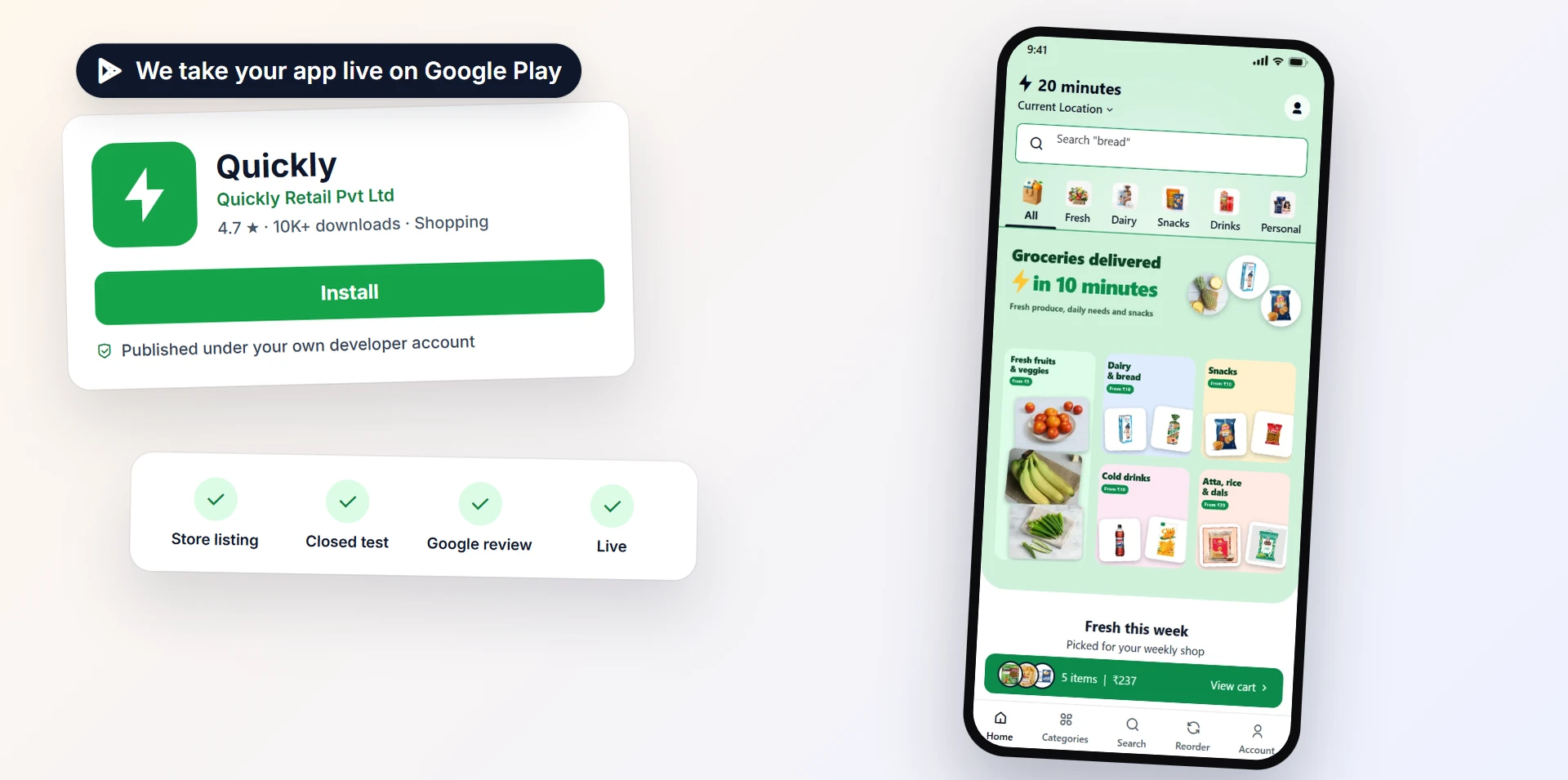
If your app comes from an app builder, it still goes through every step above, in your own account. With Zepio, your Android app is built from your online store, and our team can publish it in your Play Console account through the Play Store publishing service. The app stays in your name.
For the bigger picture, read how to create a mobile app for your business.
Questions people ask
How much does it cost to publish an app on Google Play?
Do I need 12 testers to publish on Google Play?
Should I use a personal or an organisation account for a business app?
How long does Google Play review take?
What is a D-U-N-S number and how do I get one?
Can someone else publish my app for me?
Sources
- Get started with Play Console (registration fee), Google Play Console Help
- Choose a developer account type, Google Play Console Help
- Required information to create a Play Console developer account, Google Play Console Help
- App testing requirements for new personal developer accounts, Google Play Console Help
- Add preview assets to showcase your app, Google Play Console Help
- Create and set up your app, Google Play Console Help
- Target API level requirements for Google Play apps, Google Play Console Help
- Publish your app, Google Play Console Help
Facts were checked against these sources on 19 Oct 2026. Rules and prices change: check the source before you rely on a figure. Read our editorial standards, or write to hi@zepio.io to report a mistake.